
Pixpa offers a 15-day free trial for you to try out our website builder platform. You can explore Pixpa, ask us anything and start building your website during this trial period.
You can upgrade to a paid subscription whenever you are ready. Your website will go live and be available to the public once you start the subscription.
You can choose between an All-in-on-suite plan, which includes a website, store, ecommerce galleries, client galleries, blogs, and mobile gallery apps, or opt for the client galleries standalone plan.
To upgrade to a paid subscription, follow these steps:
- From the Dashboard, click on the Upgrade now button present on the horizontal banner in the studio.
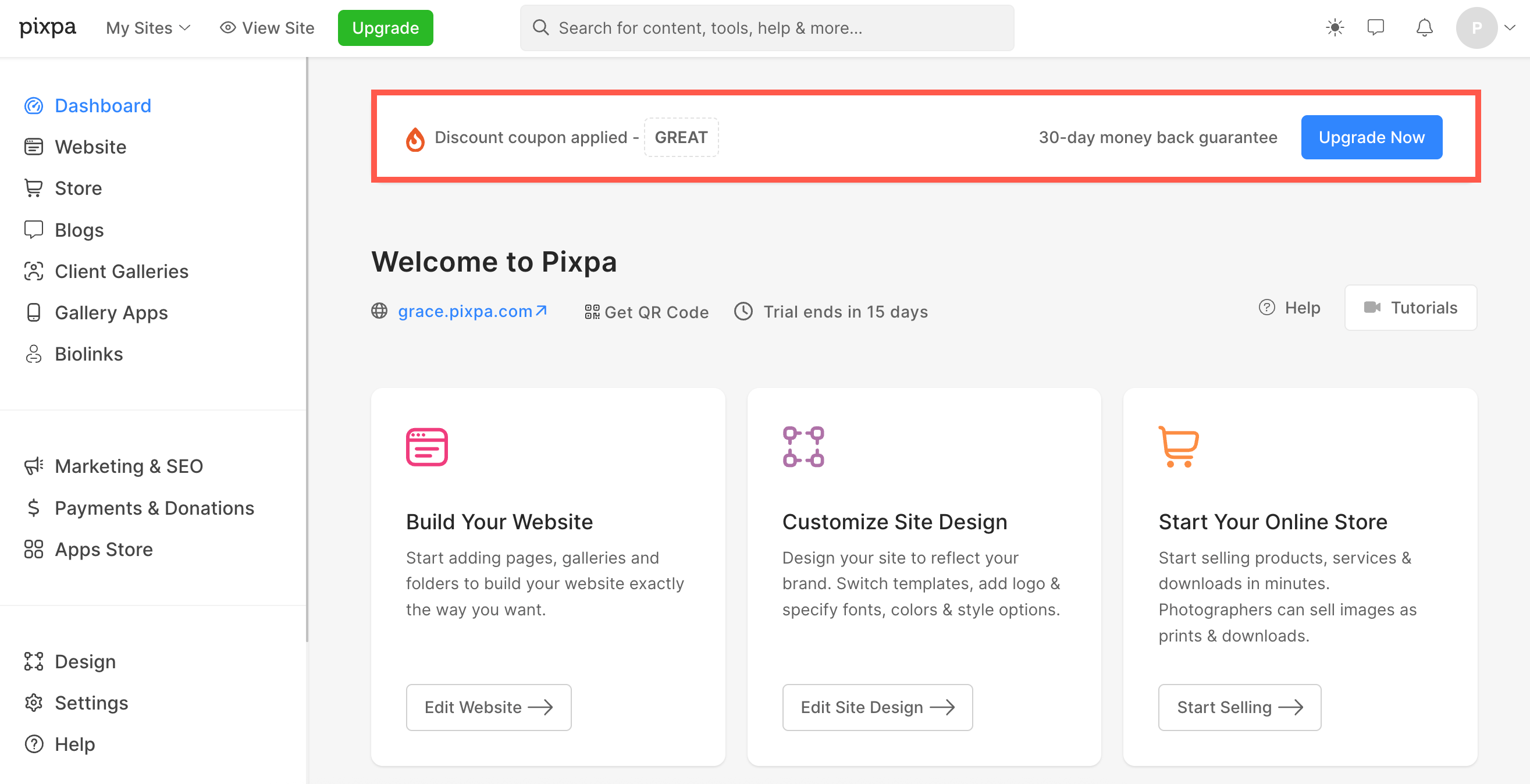
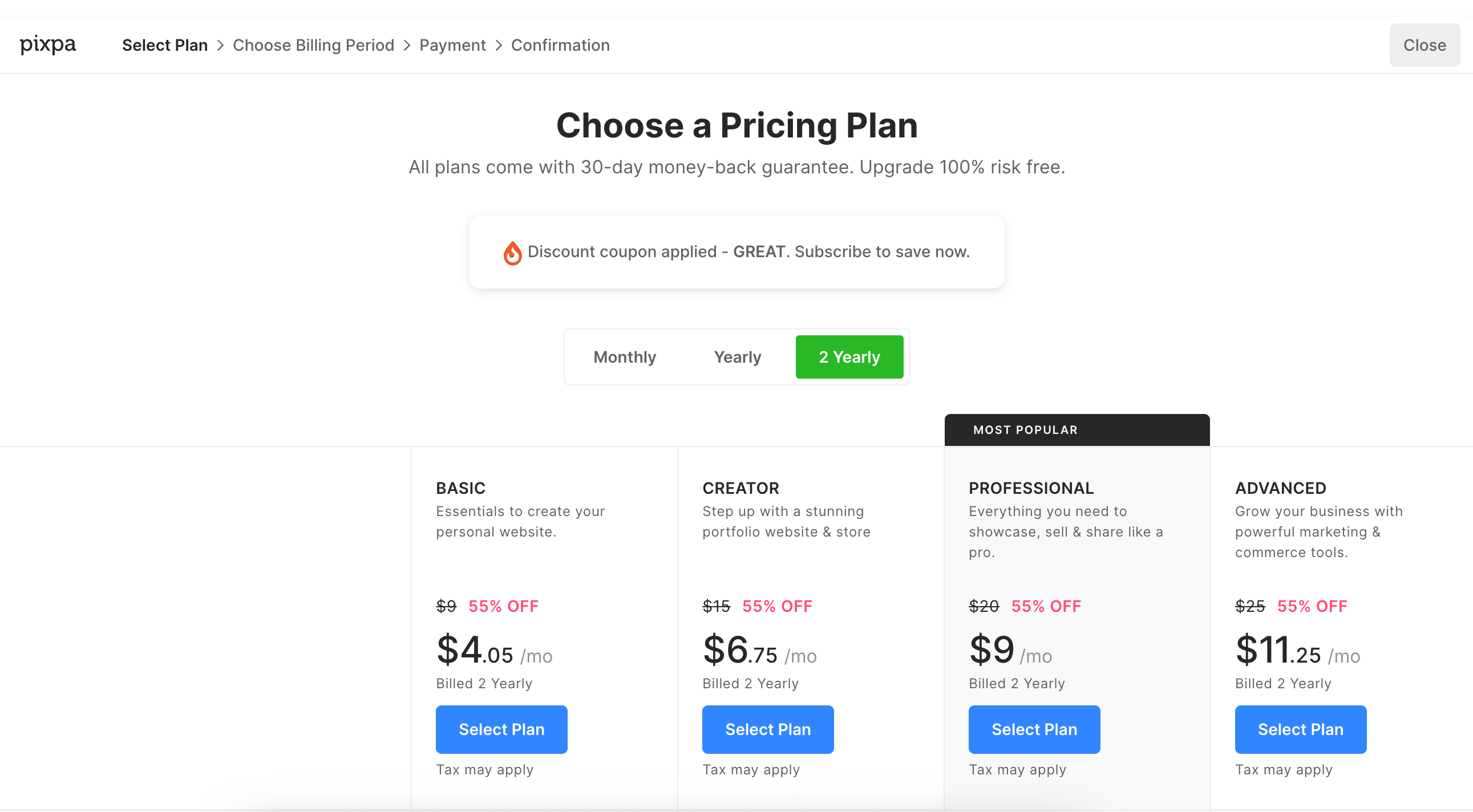
- On clicking the Upgrade Now button, you will be taken to the Plan Selection page where the coupon code GREAT will be applied automatically. This provides a 55% discount on two year plans and a 40% discount on yearly plans.
- To choose an All-in-one-suite plan, select the plan that works best for you. Do check out the features available in each plan.
- Click on the Select Plan button under any plan.
All-in-one-suite plans
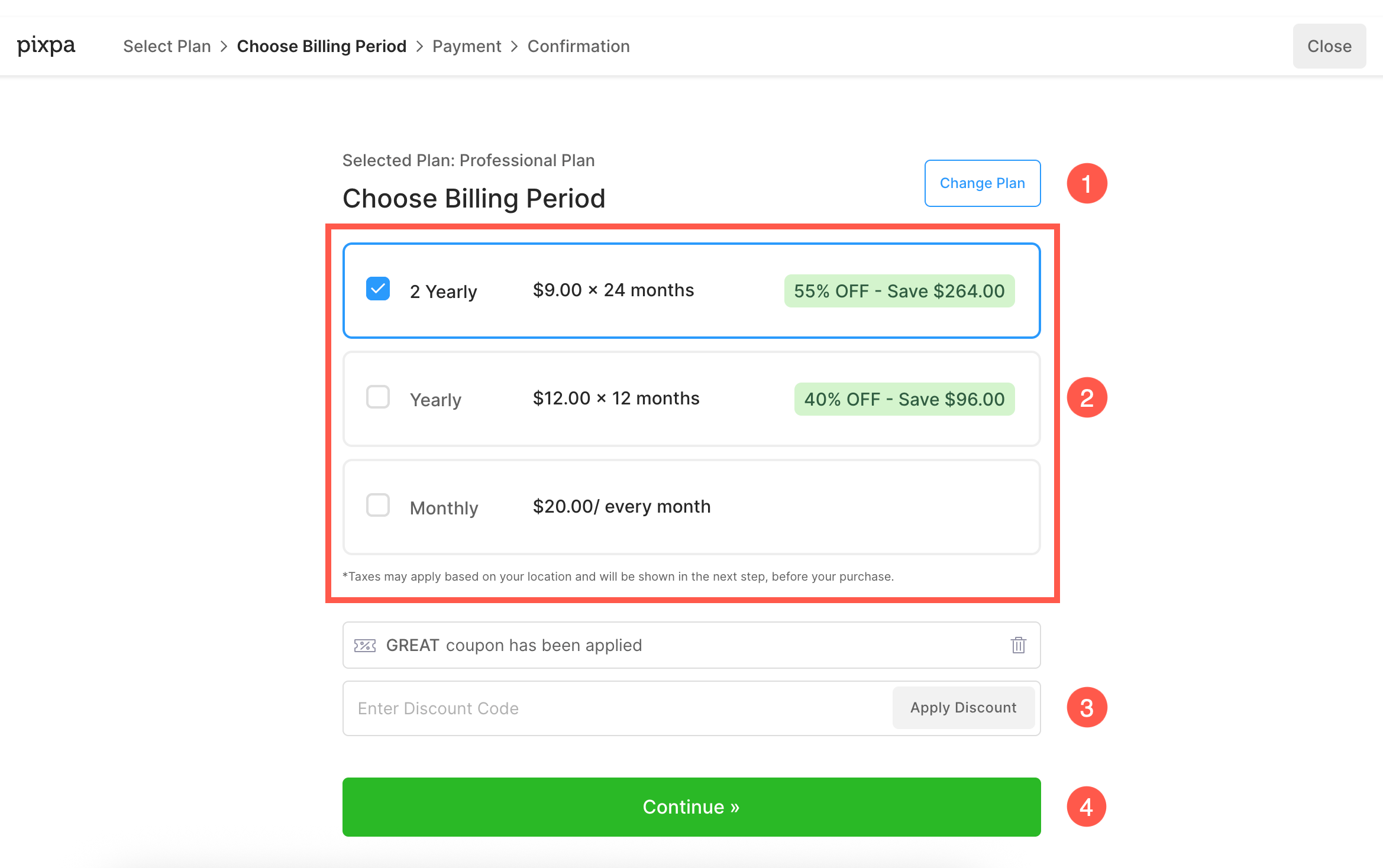
- You’ll now see a page where you can choose to change the plan (1), select the subscription cycle i.e. yearly or monthly or bi- yearly (2) and the amount for the plan period, discount, and the estimated total will be shown on the right side.
- If you have any other discount code, you can remove the GREAT code and enter the same (3).
- Finally, click on the Continue button (4).
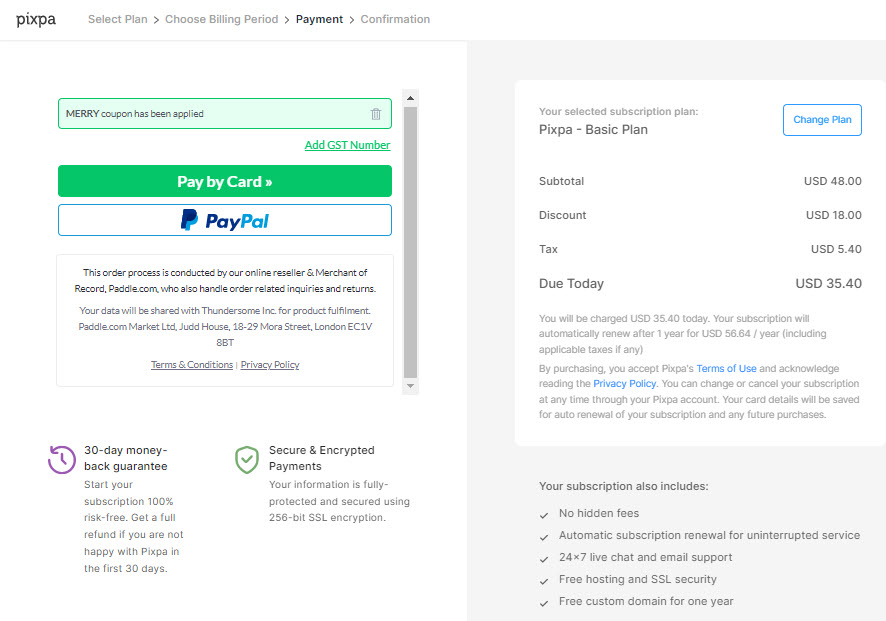
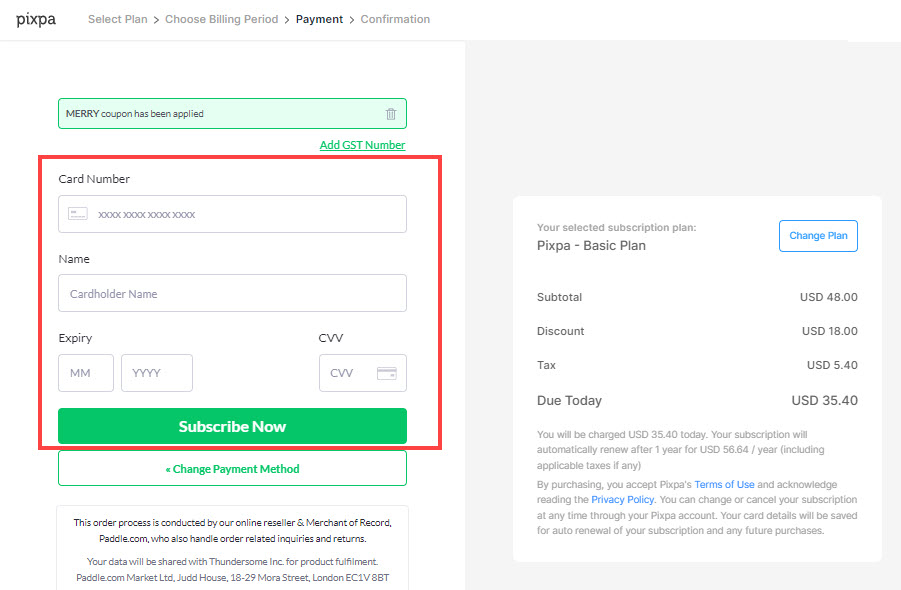
- This will take you to the checkout page, where you can choose to pay through credit card or Paypal and proceed further.
- Also, you can add your GST/VAT number from this page.
- The amount for the plan period, discount, and the estimated total will be shown again on the right side.
- Once you have chosen the payment method as card, you would see the below page wherein you can enter your name and card details.
- Voila! Your account will now be upgraded to a paid account.
- You will see the plan details, the next payment date, and other relevant information on the Confirmation page.