
You can manage your Pixpa account from the My Account page.
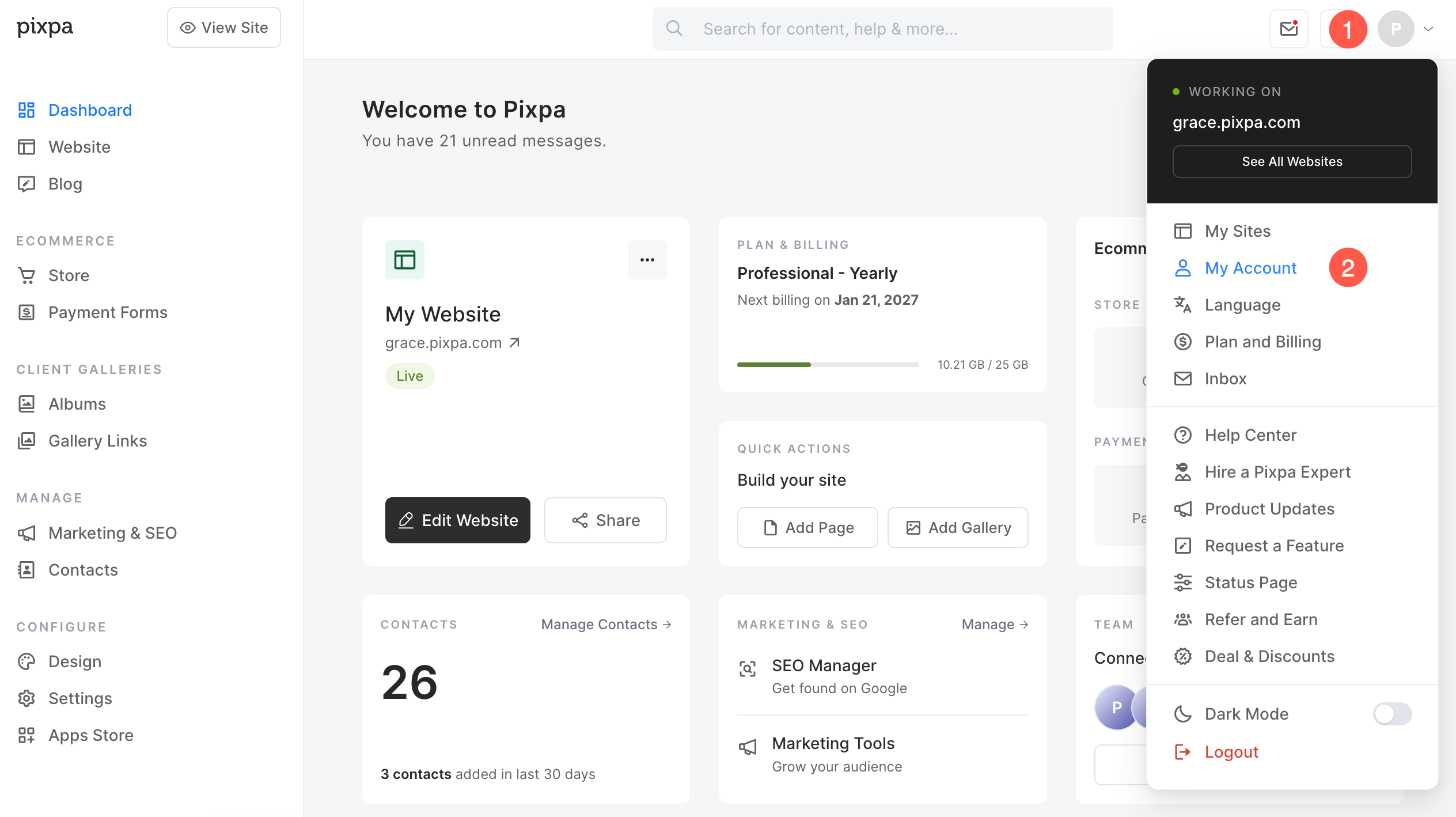
- Click on the avatar icon (1) in the top right corner.
- Select My Account (2) option.
You can manage:
Account Details
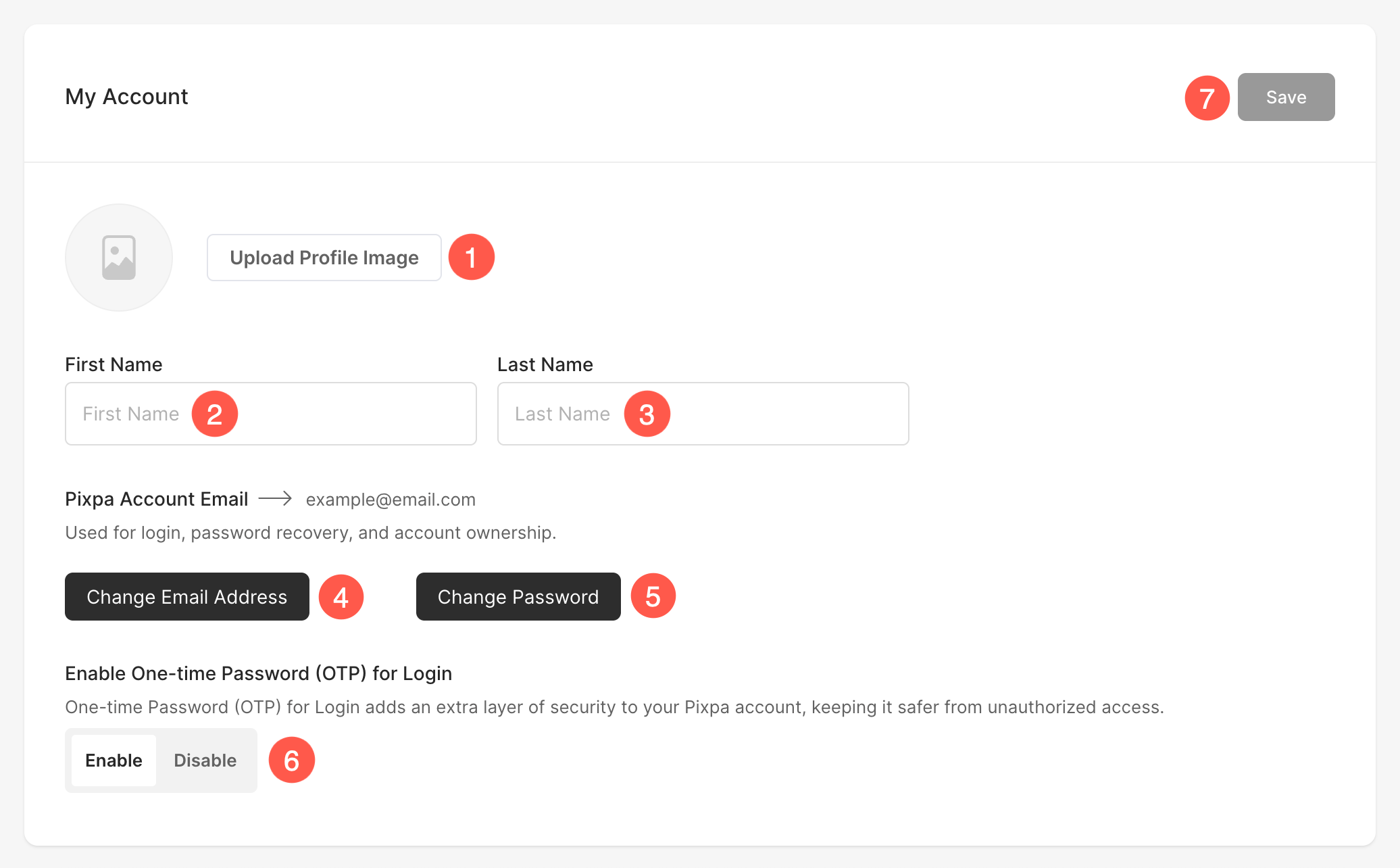
Under Account Details, you can view and edit the following.
- Upload Profile Image – Upload your profile/avatar image here.
- Enter your First name.
- Enter your Last name.
- Pixpa Account Email Address – All Pixpa emails will be forwarded to this address. Also See: Change your account email address.
- Change Password – You can change your studio password here. You can also demand for password reset email by clicking on the Forget Password link. Also See: Change your account password.
-
You can change your Studio password here. If needed, you can request a password reset email by clicking the “Forget Password” link. Also see: Change your account password.
- Enable One-time Password (OTP) for login – This setting lets you turn OTP-based login security on or off. When enabled, a one-time password will be sent to your registered email address each time you log in, adding an extra layer of protection against unauthorized access. You can disable this option if you prefer to log in without OTP.
- Save the changes after making the customizations.
Studio Language
Pixpa allows you to choose your preferred language for the Pixpa Studio interface. Changing the language updates the backend dashboard experience, making it easier to navigate and manage your website in the language of your choice.
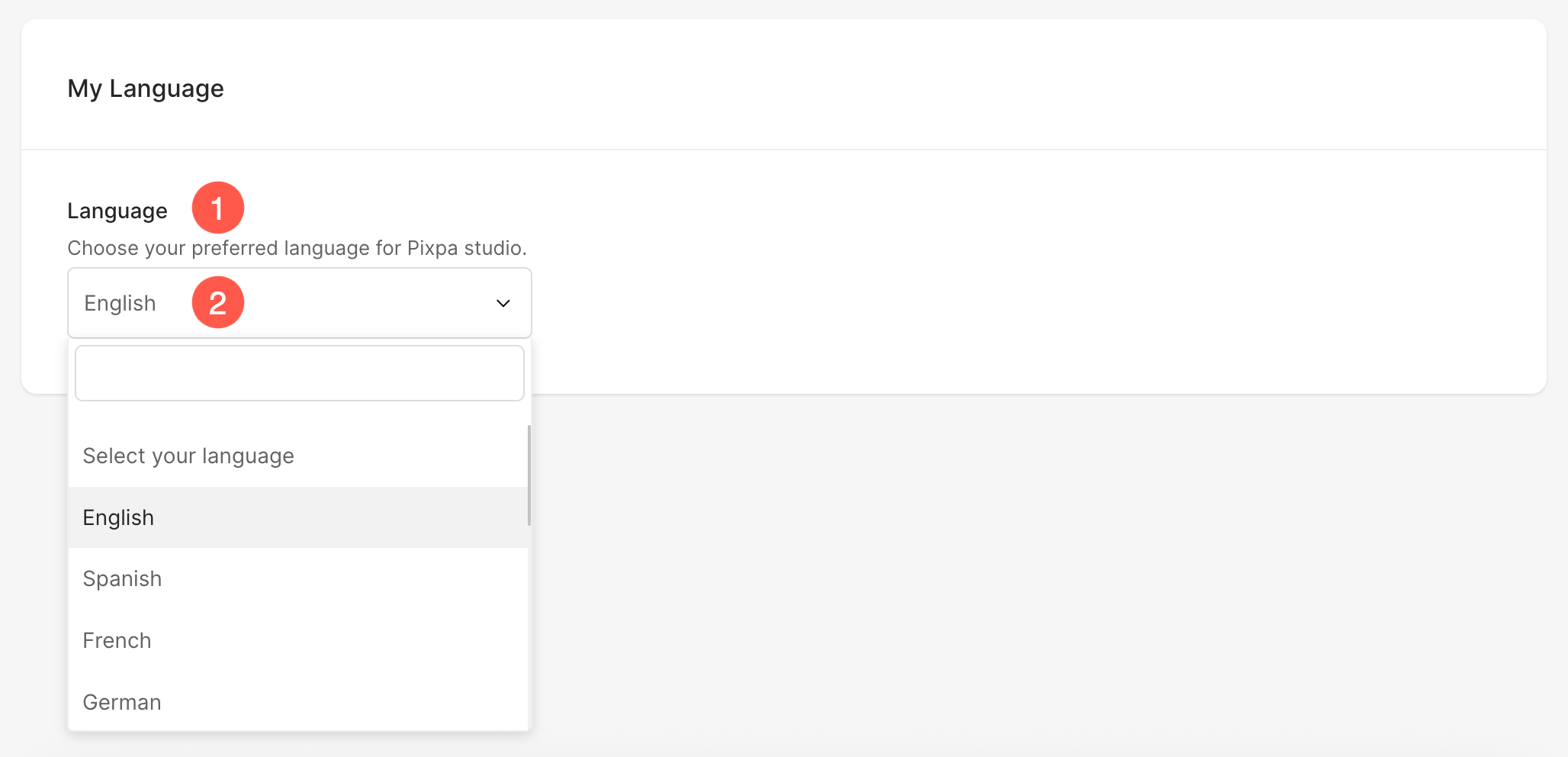
- Under Language, you can choose your preferred language for the Pixpa Studio interface.
- Click the language dropdown to view the list of available languages. You can use the search bar to quickly find your preferred language and select it. After selecting a language, save the changes.
Login History
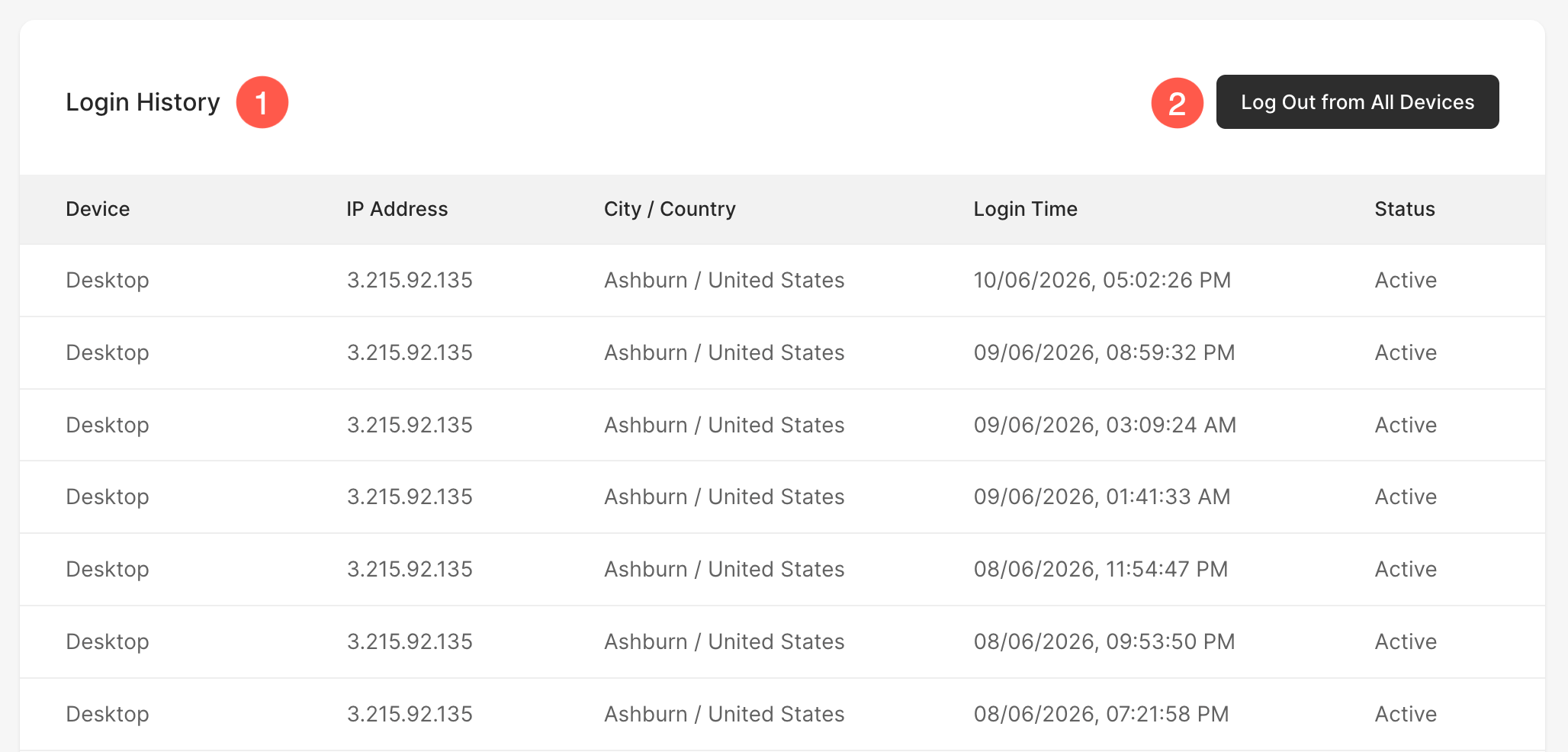
The Login History section helps you monitor recent login activity for your Pixpa account. It provides details about the devices and locations from which your account has been accessed, allowing you to review account activity and identify any unfamiliar logins.
- The following details are displayed for each login session:
- Device – Shows the type of device used to access your Pixpa account.
- IP Address – Displays the IP address associated with the login session.
- City / Country – Shows the approximate location from which the login was made.
- Login Time – Displays the date and time of the login activity.
- Status – Indicates whether the session is currently active.
- Use the Log Out from All Devices button to sign out of all active sessions associated with your Pixpa account. This can be useful if you believe your account has been accessed from an unfamiliar device or if you want to end all existing login sessions for security purposes.
Site Owner Profile
See how to manage the site owner profile.
Business Information
See how to manage the Business Information.
Standards & Formats
See how to manage the Standards & Formats.