Image Quality plays a bigger role in optimizing and delivering images online. High-quality images have larger file sizes and hence can slow down your website.
Finding the right balance between image quality and file size is essential for optimal website delivery and loading speeds.
At Pixpa, we follow a default image quality of 75% for JPEG images. Any changes made to this setting will be applied to all images on the website, including those uploaded prior to the change.
Pixpa gives you full control over specifying your own image quality settings.
Change the Image Quality settings:
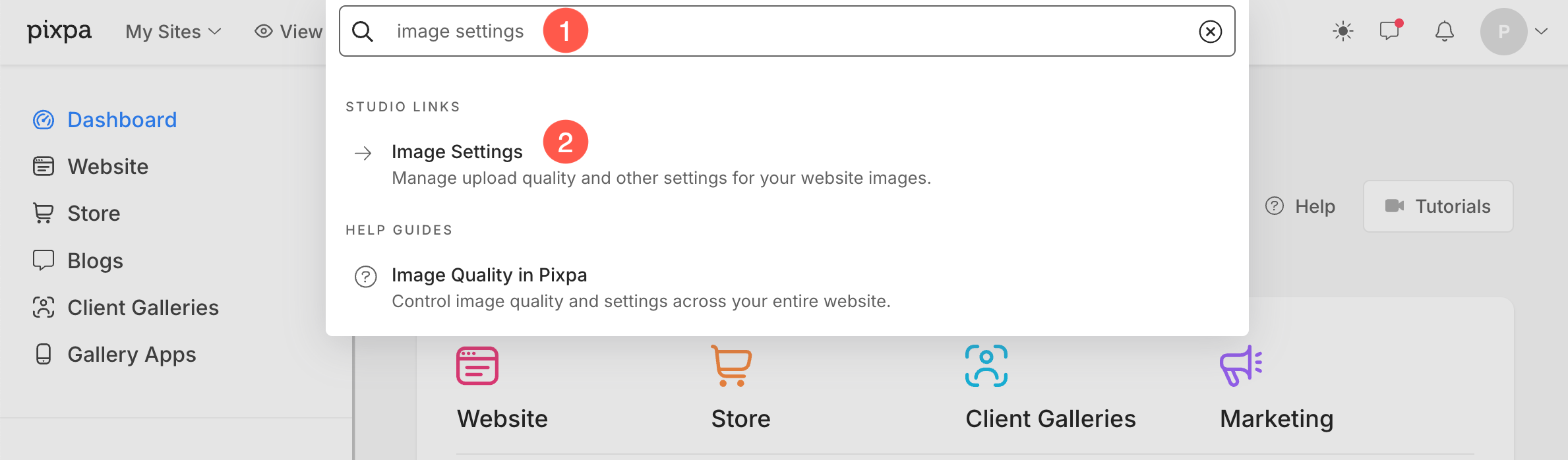
- Enter image settings (1) in the Search Bar.
- From the related results, click on the Image Settings option (2) under Studio Links.
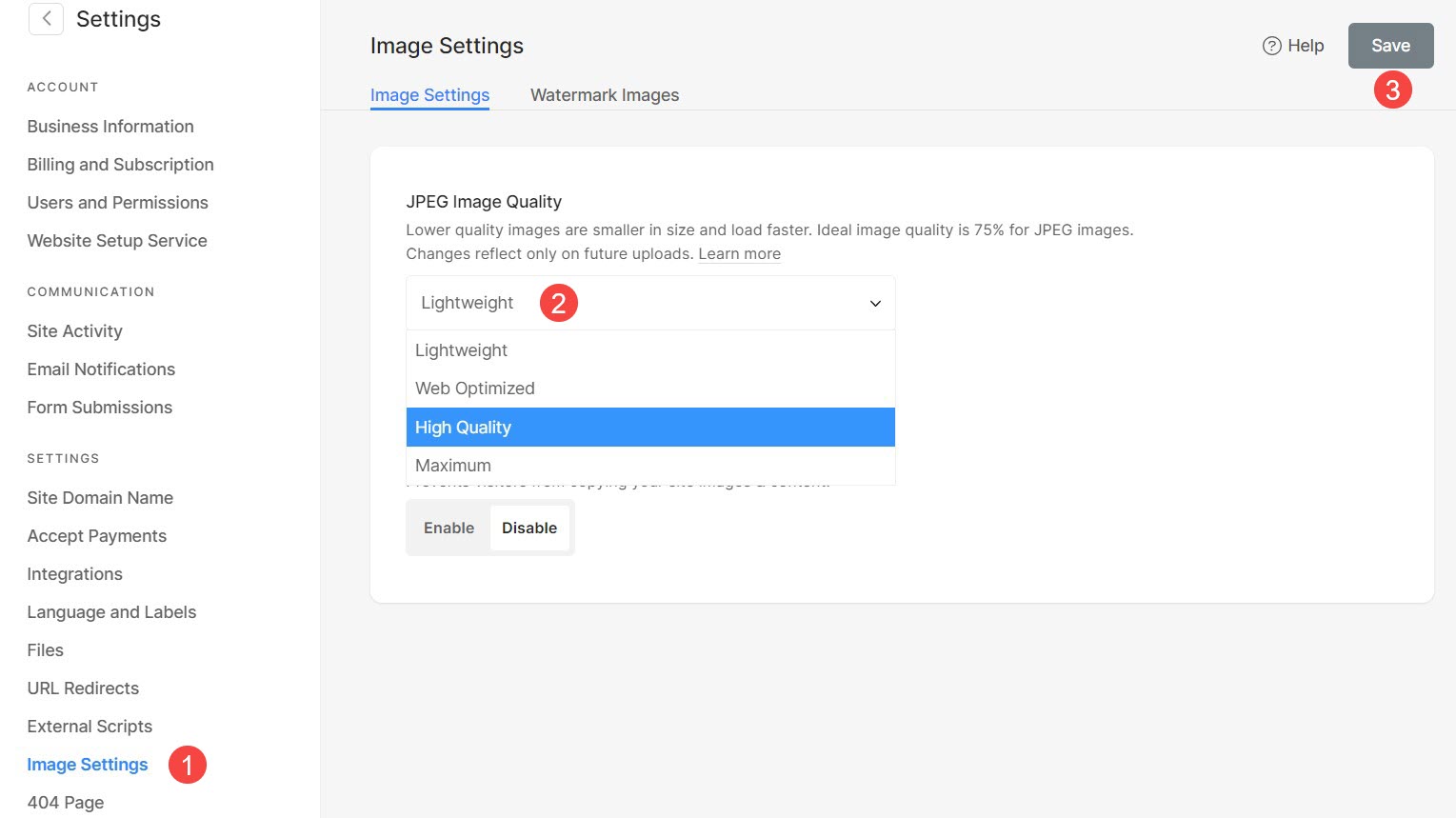
- In Image Settings (1), you would see the JPEG Image Quality (2) settings on the right side.
- You can choose your desired Image quality from the drop-down as shown in the image below.
- Lightweight – When you choose this option, the quality of your images will be 60%. Images will have the most compression when compared to the other options.
The pages will load faster. The image size will be decreased when compared to the original image (the one you have uploaded). - Web Optimized – When you choose this option, the quality of your images will be 75%. The images will have moderate compression.
Loading speed of pages will remain almost the same as Lightweight. The image size will increase marginally as compared to the original image (the one you have uploaded). - High Quality – When you choose this option, the quality of your images will be 80% – 90%. The images will have low compression and balanced quality.
The pages will load at normal speed. The image size will remain similar to the original image (the one you have uploaded). - Maximum – When you choose this option, the quality of your images will be 95% – 100%. The images will have the least compression when compared to the other options.
The pages will load slowly. The image size will be increased when compared to the original image (the one you have uploaded).
- Lightweight – When you choose this option, the quality of your images will be 60%. Images will have the most compression when compared to the other options.
- Finally, save (3) your settings.