
Pixpa offers a 15-day free trial for you to try out our website builder platform. You can explore Pixpa, ask us any questions and start building your website during this trial period.
You can start your subscription whenever you are ready in the 15 days of the free trial or even after your trial expires. Your website will go live and be available to everyone once you start the subscription.
When you are ready to start your subscription, follow these steps:
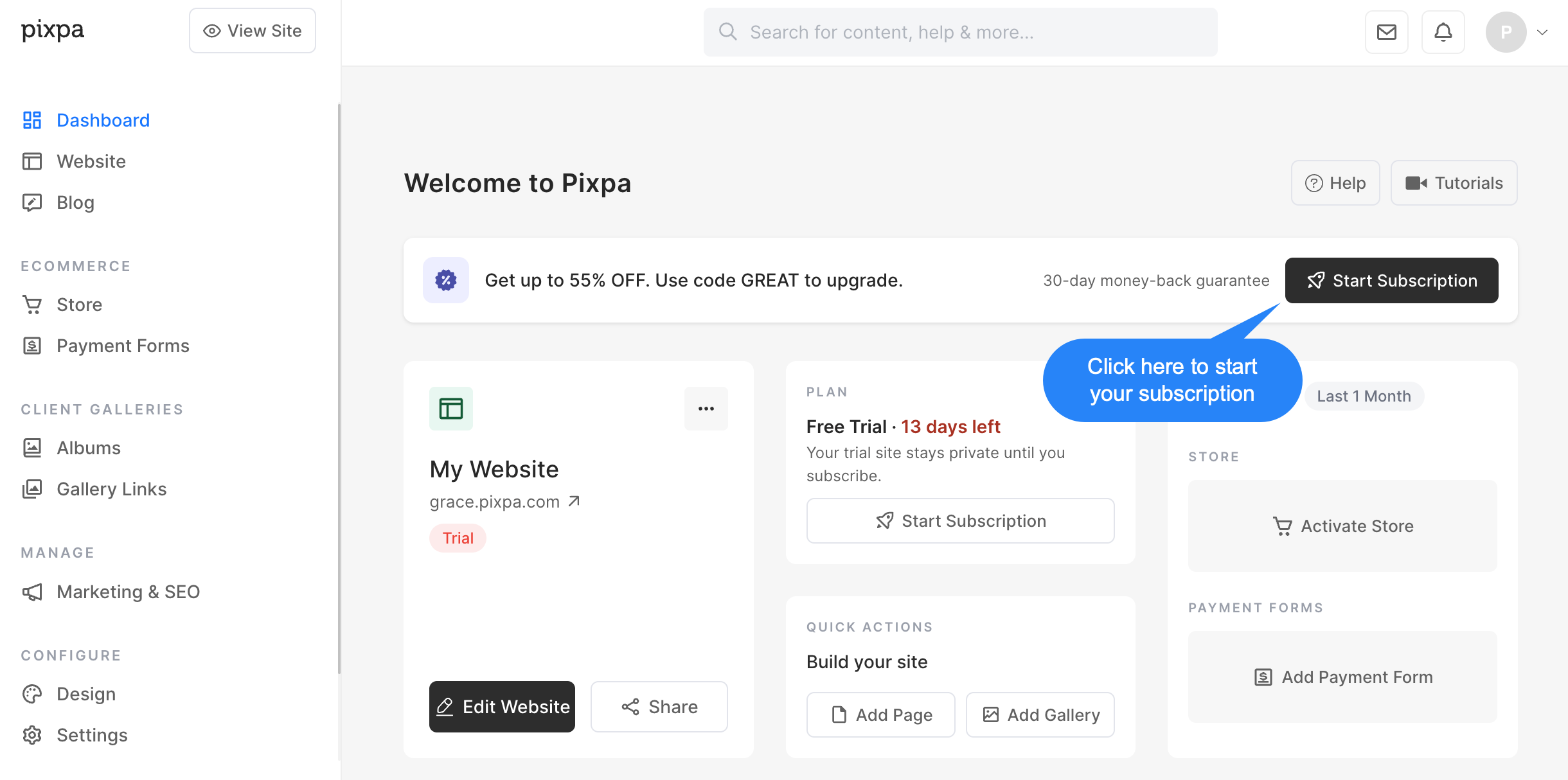
- Click on the Start Subscription button in the studio.
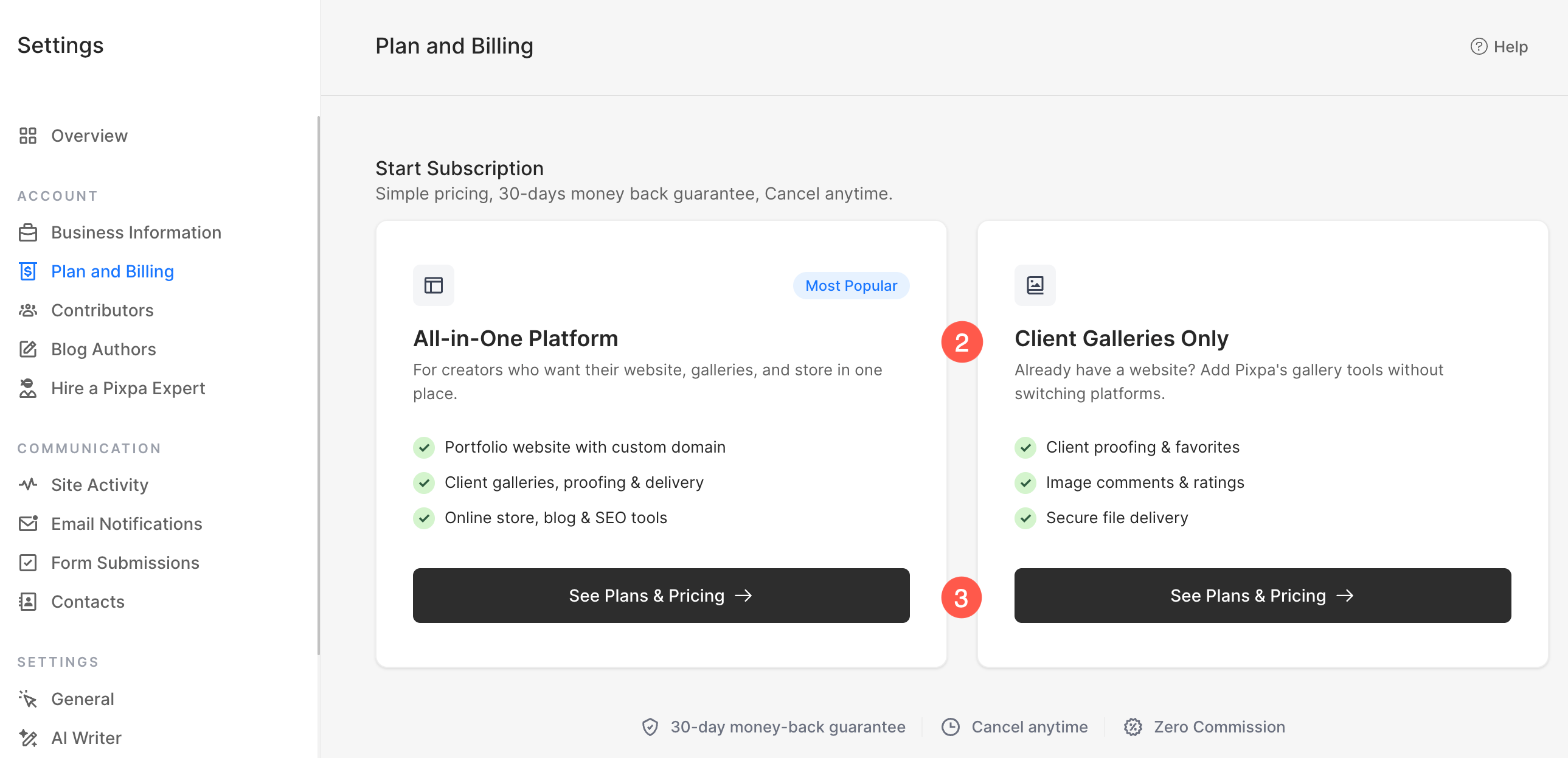
- On the next screen, choose the type of plan that best suits your needs:
- All in One Platform
- Includes a complete website with a custom domain.
- Includes client galleries, proofing, and image delivery.
- Includes an online store, blog, and SEO tools.
- Ideal if you want to build and manage your entire website on Pixpa.
- Client Galleries Only
- Designed for users who already have a website elsewhere.
- Includes client proofing, favorites, comments, and ratings.
- Includes secure image delivery tools.
- Ideal if you only need Pixpa’s gallery and client management features without a full website.
- Click See Plans & Pricing under your preferred option to view the available subscription plans and complete the subscription process.
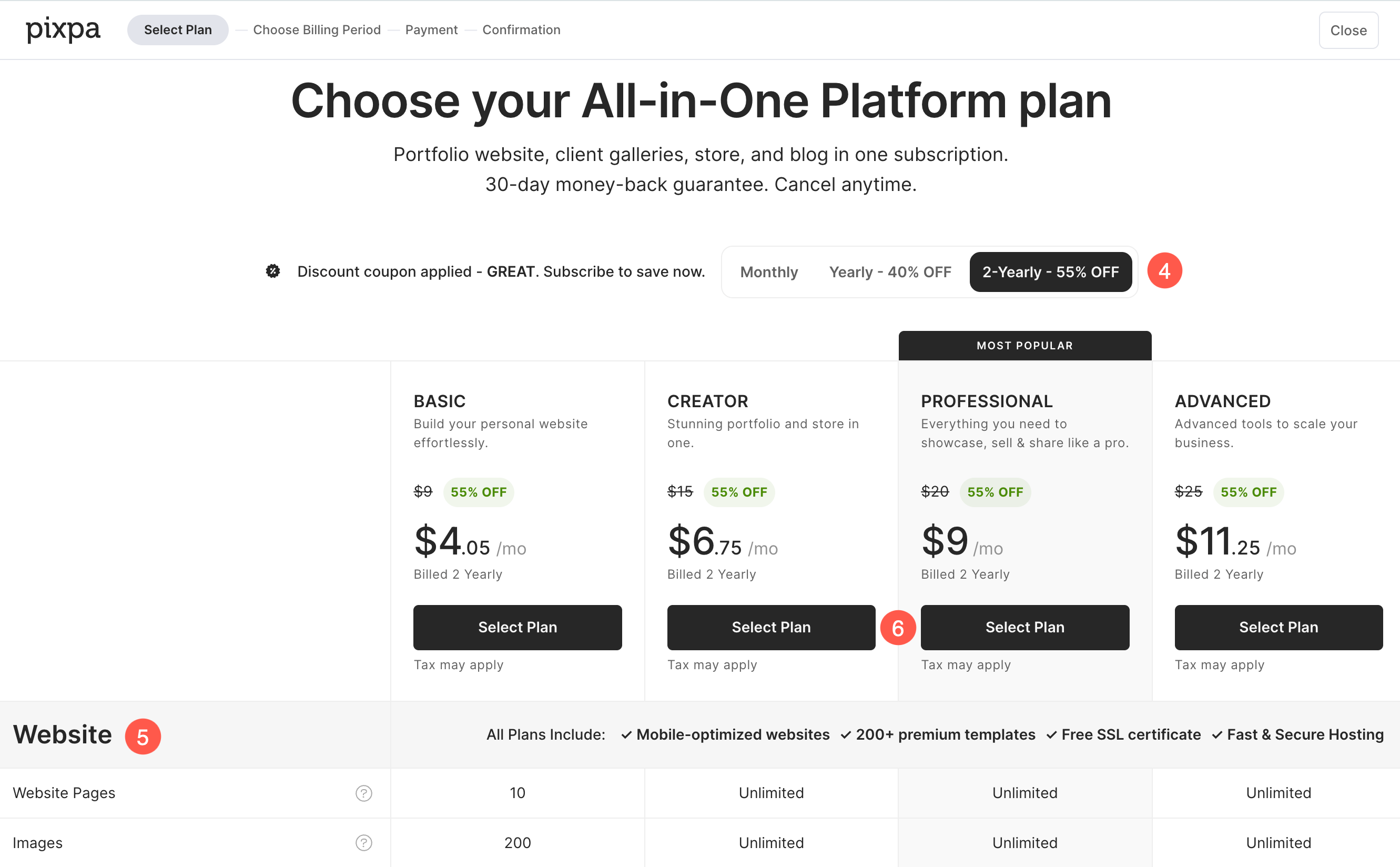
- Based on the plan type selected in the previous step, you’ll be presented with the available subscription plans. Choose the billing period that best suits your needs:
- Monthly
- Yearly
- 2 Yearly
- Each plan includes a different set of resources and features. You can compare them directly on this page before making your selection. Scroll down to view the detailed comparison table, which lists all the resources and features included with each plan.
- Once you’ve selected the plan that best fits your needs, click Select Plan to proceed to the next step.
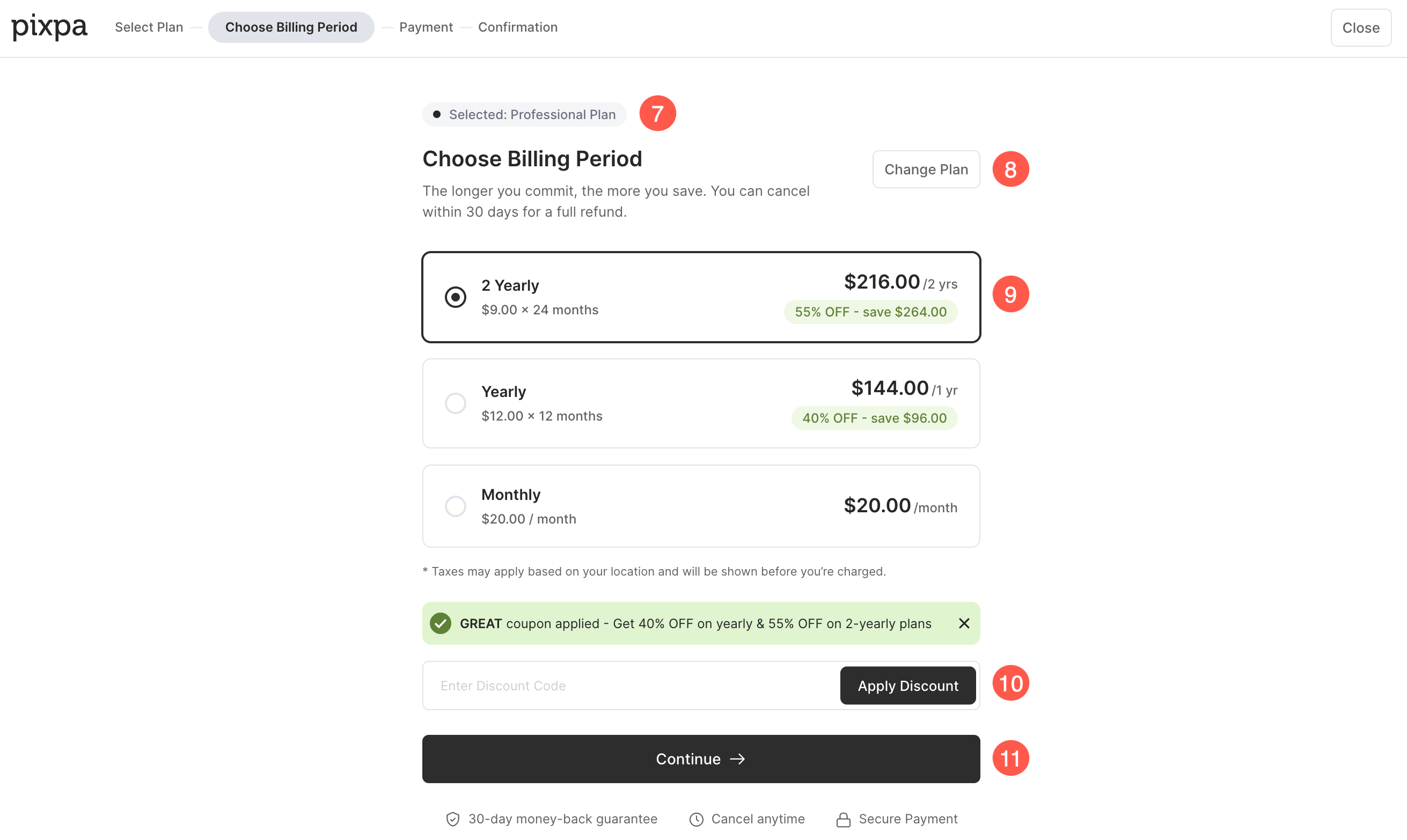
- You will see the selected plan displayed at the top of the page.
- If you’d like to choose a different plan, click the Change Plan button.
- Here, you can review the pricing for the selected plan and choose your preferred billing period (Monthly, Yearly, or 2 Yearly).
- If you have a discount coupon, enter it in the Discount Code field and click Apply Discount. If a coupon has already been applied, the discounted pricing will be displayed automatically.
- Once you’ve reviewed the plan details and selected your preferred billing period, click Continue to proceed to the payment page.
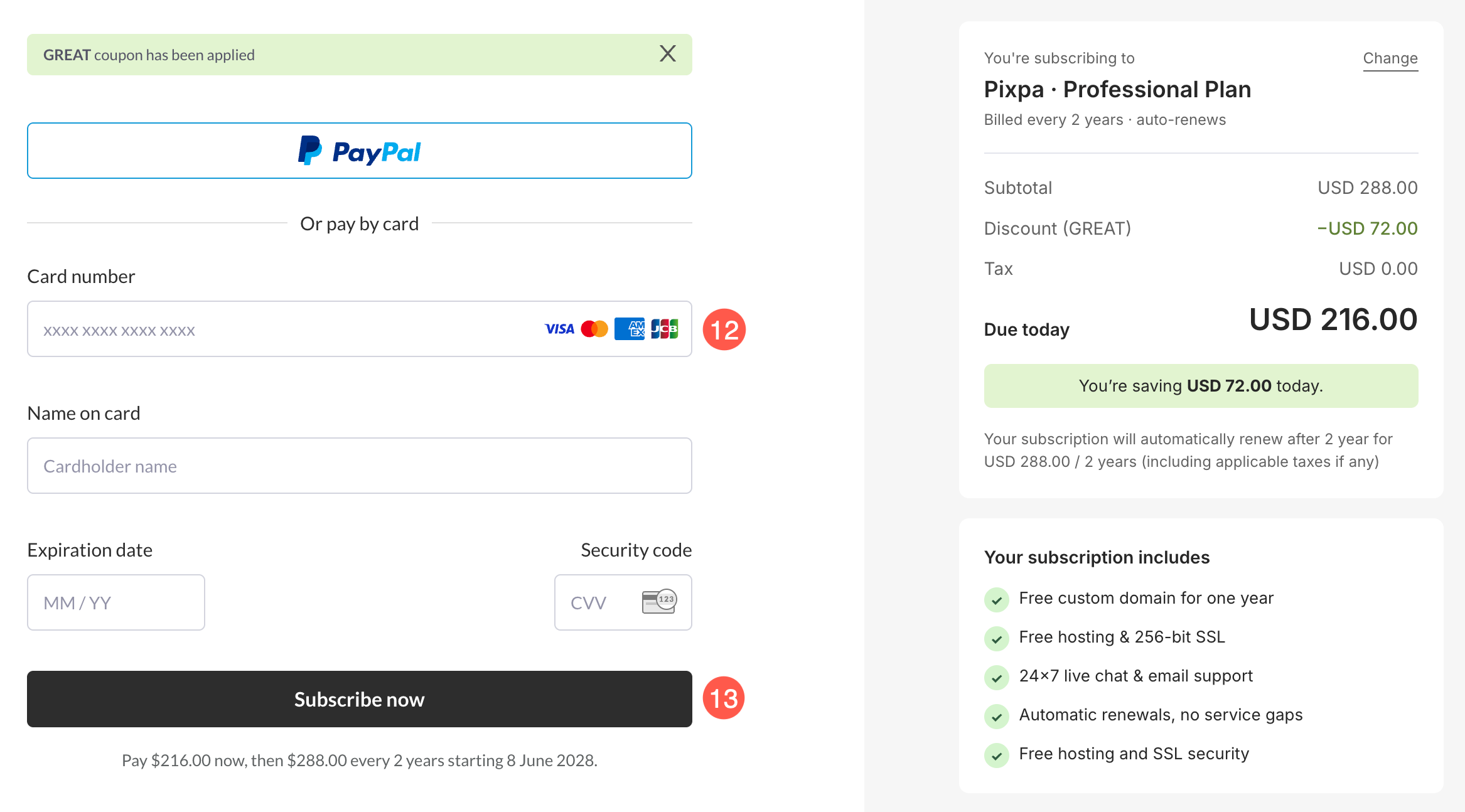
- This will take you to the checkout page where you can submit your details (name, email, and credit card details) to start your subscription.
- Once you are ready, click the Subscribe now button to complete your subscription.
- That’s it. You are done. Your account will now be upgraded to a paid account.