
Pixpa’s Gallery Links platform enables you to create personalised mobile gallery links for your clients. Share your work, build your brand, deliver added value and impress your clients.
Also Check: Add a mobile gallery link.
As you share the gallery link with your clients, they can install it on their mobile and tablet.
Follow the steps below to know how to install on different devices:
iOS devices
- Open the gallery link in the safari browser.
- Tap
 on the bottom bar (1).
 - Select the “Add to Home Screen” option (2).
- Enter the Gallery Link name and click on Add button (3). That’s it.
You would see the link icon on your device.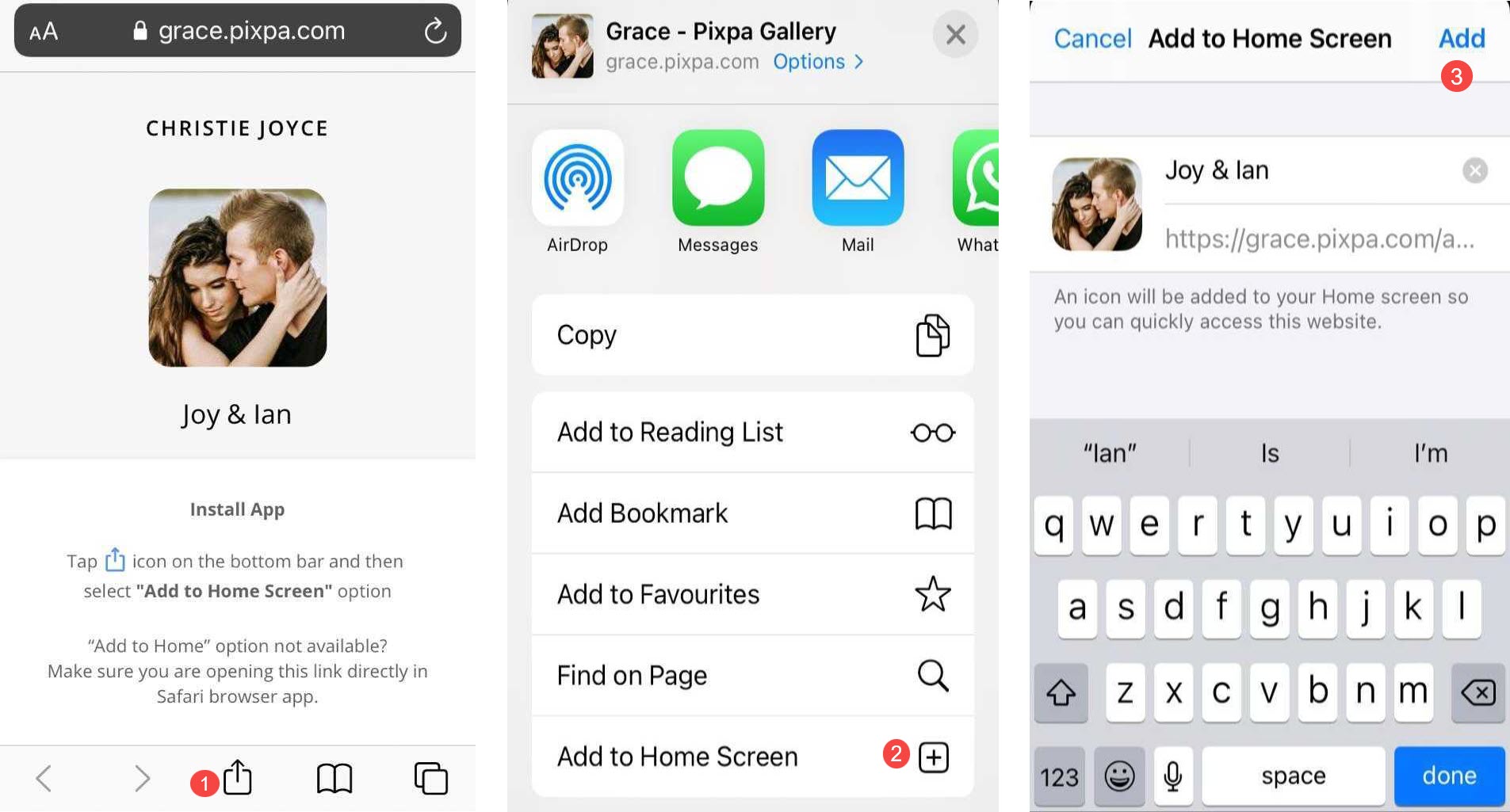
Note: If you open the gallery link in Chrome browser on an iOS device, you would not see the option of Add to Home screen. Click on the Copy link button and open in supported browser i.e. Safari.
Android devices
- Open the gallery link in the Chrome browser.
- Tap
 icon on the top right (1).
 - Then select the Add to Home Screen option (2).
- Enter the gallery link name and click on the add button (3). That’s it.
You will see the gallery link icon on your device.
