Alt text (alternative text) helps describe images on your website to search engines and visually impaired users. It improves accessibility and SEO by helping search engines understand what your images represent.
In Pixpa, alt text can be added or automatically generated for different types of images such as galleries, banners, featured images, image list sections, and product images.
In this article:
- Gallery Images
- Banner Images
- Featured / Social Media Images
- Pagebuilder Section Images
- Product Images
- Background Images
Gallery Images
Alt text for gallery images can be added manually.
- Open the gallery and click on Image Info tab.
- Specify the Alt Tag in the Alt Tag field.
- Save the changes.

Banner Images
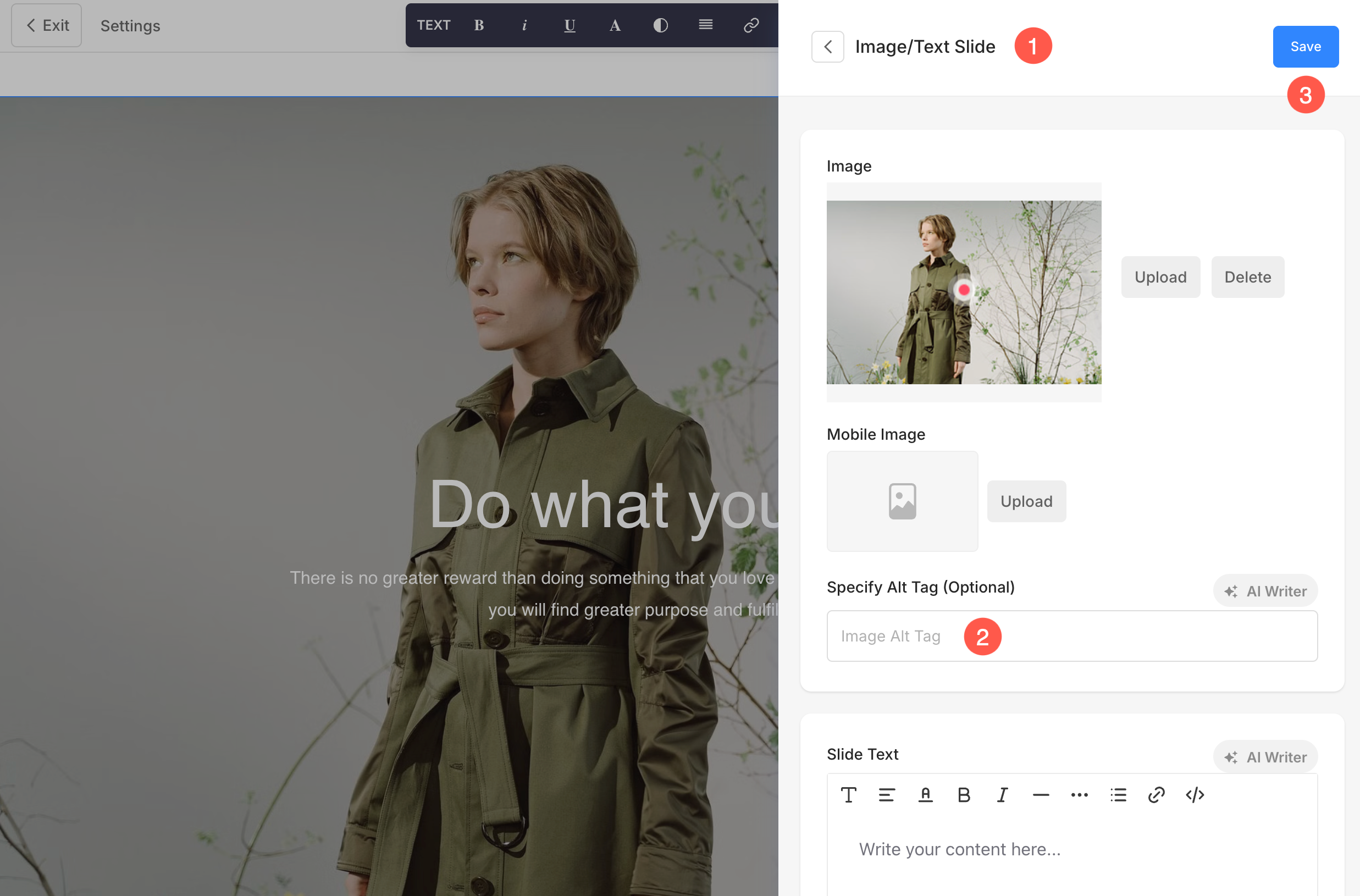
- Under the Banner section, open the slide for which you want to add the Alt tag.
- Specify the Alt Tag for the banner image under this slide.
- Save the changes.
Featured / Social Media Images
Social media images are typically used in blogs, blog posts, galleries, project pages, links, etc. Learn more.
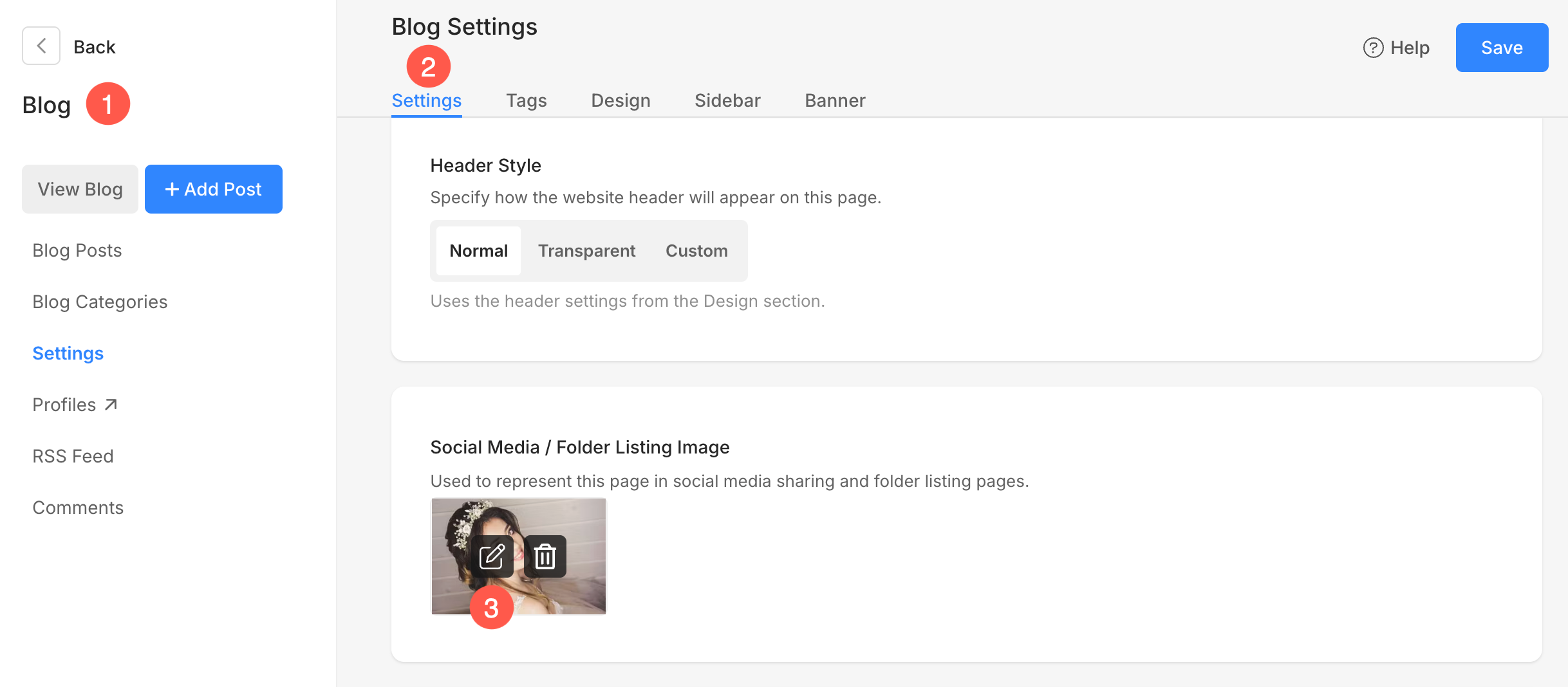
- Go to the relevant content (1) where you want to add the Alt tag for Social media image.
- Click on the Settings (2) tab.
- Hover the cursor over the Social Media image. You will see Edit (3) icon over the image. Click on it.
- A popup will open from where you can specify Alt tag (4) for the image.
- Click on Close (5) button and Save (6) the changes.

Pagebuilder Section Images
For images added through the Image List section or other Page Builder sections (like Headline, Forms, Testimonials section, etc.), Pixpa automatically uses the Title as its alt text.
This ensures that each image has descriptive alt text without requiring manual input, improving SEO consistency across the website.

Product Images
For product images in your online store, Pixpa automatically assigns the Product Title as the image’s alt text.
This helps search engines identify your products easily and ensures that all product images are optimized for accessibility and SEO.
If a product has multiple images, each image will inherit the product title as its alt text.

Section Background Images
Alt text can also be added to background images used in different sections of your website.
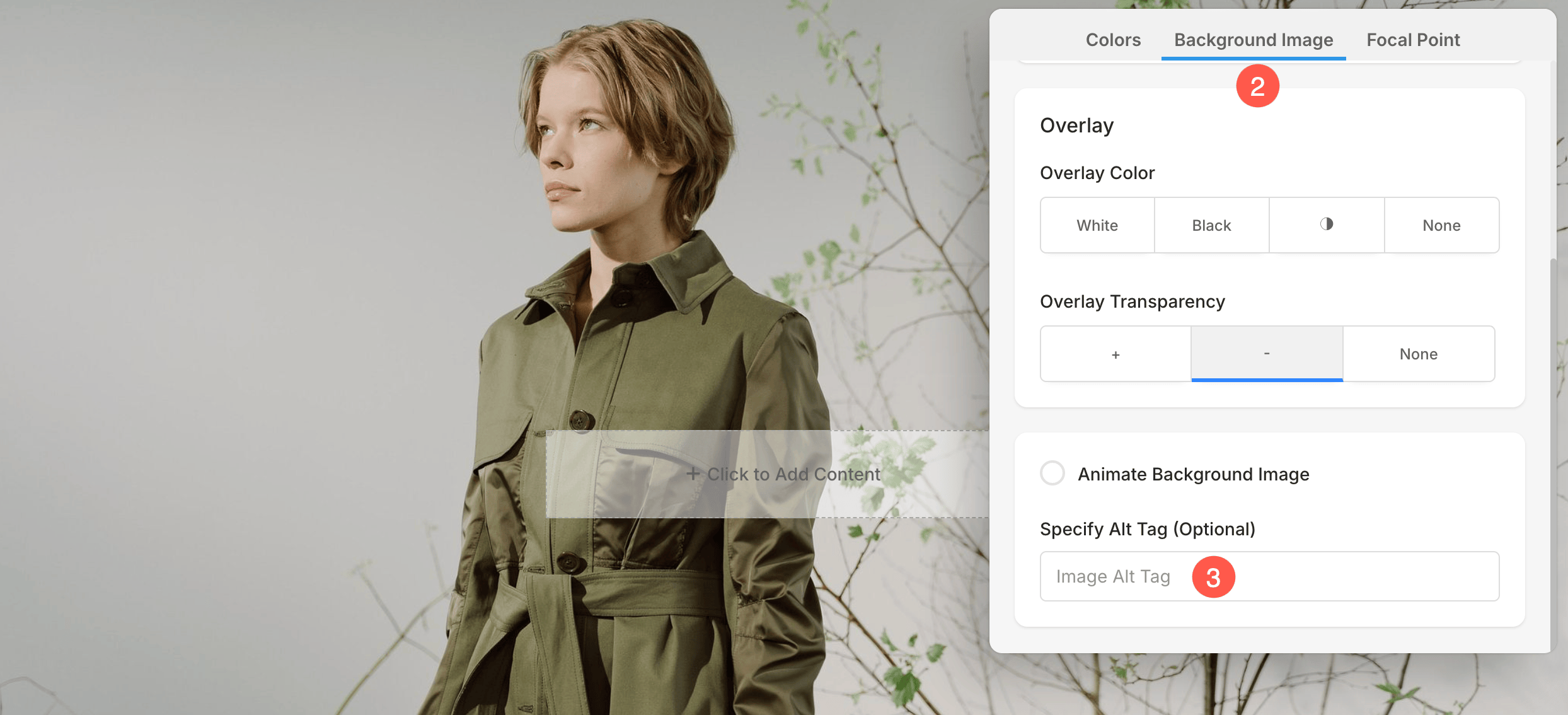
- Hover over the section and click on the Color Style (1) option in top toolbar.

- In the right-side panel, switch to the Background Image (2) tab.
- Scroll down to the specify Alt Tag (3) and Save the changes.