
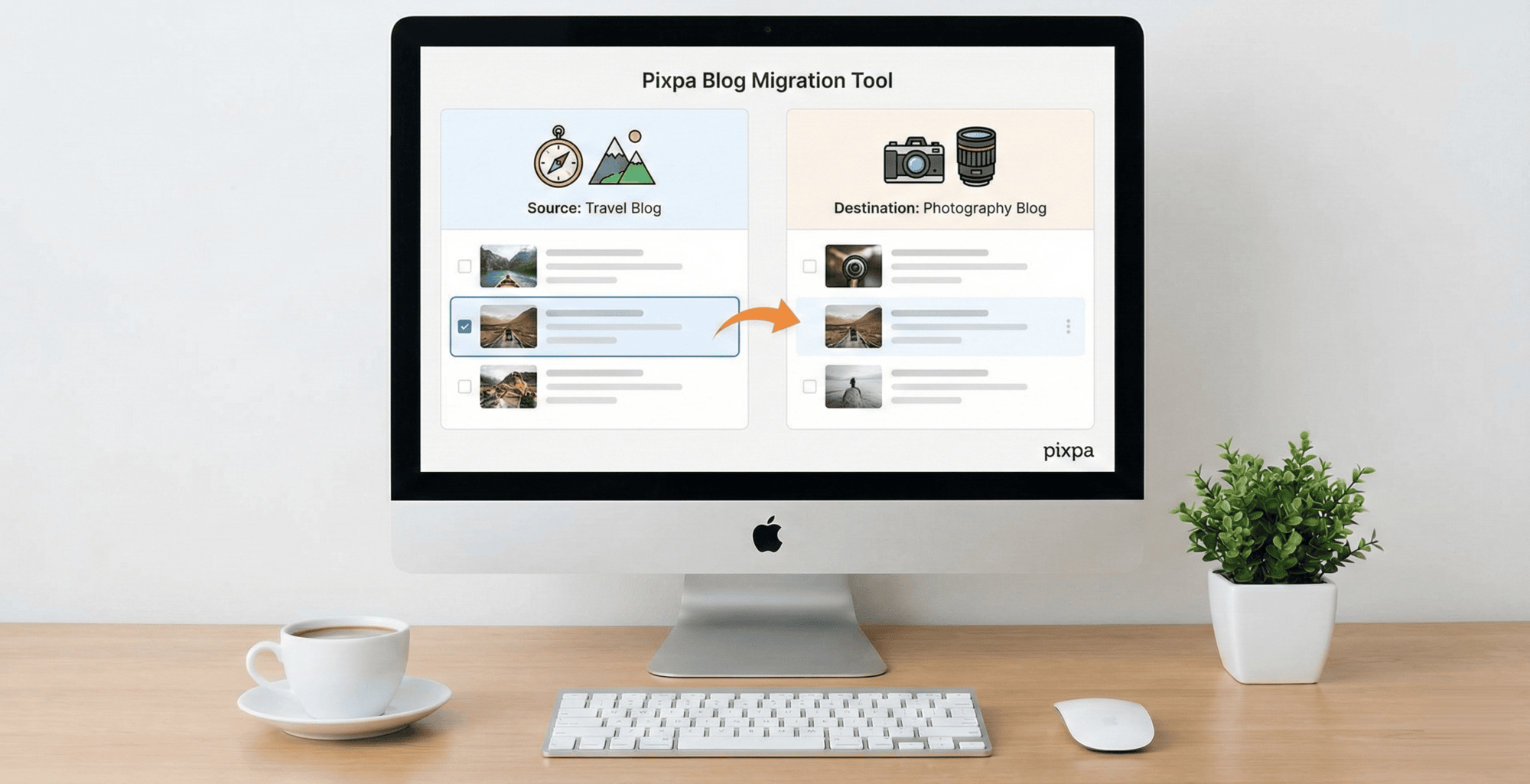
Pixpa allows you to create and manage multiple blogs within a single website. To help you organize your content better, you can move blog posts from one blog to another without recreating or copying the post manually. This is useful when restructuring your content, separating topics, or reorganizing blogs under your website.
This is useful when restructuring your content, separating topics, or reorganizing blogs under your website.
In this article:
- Understanding multiple blogs in Pixpa
- When to move a blog post
- How to move a blog post to another blog
- What happens after moving a post
Understanding multiple blogs in Pixpa
Pixpa lets you create more than one blog under the same website. Each blog can have its own posts, structure, and purpose. For example, you may have a travel blog and a photography blog on the same site.
The move post option helps you manage content across these blogs easily.
When to move a blog post
You may want to move a blog post when:
- A post fits better under a different blog category
- You are reorganizing or restructuring your website content
- You want to separate topics into dedicated blogs
- A post was published under the wrong blog by mistake
How to move a blog post to another blog
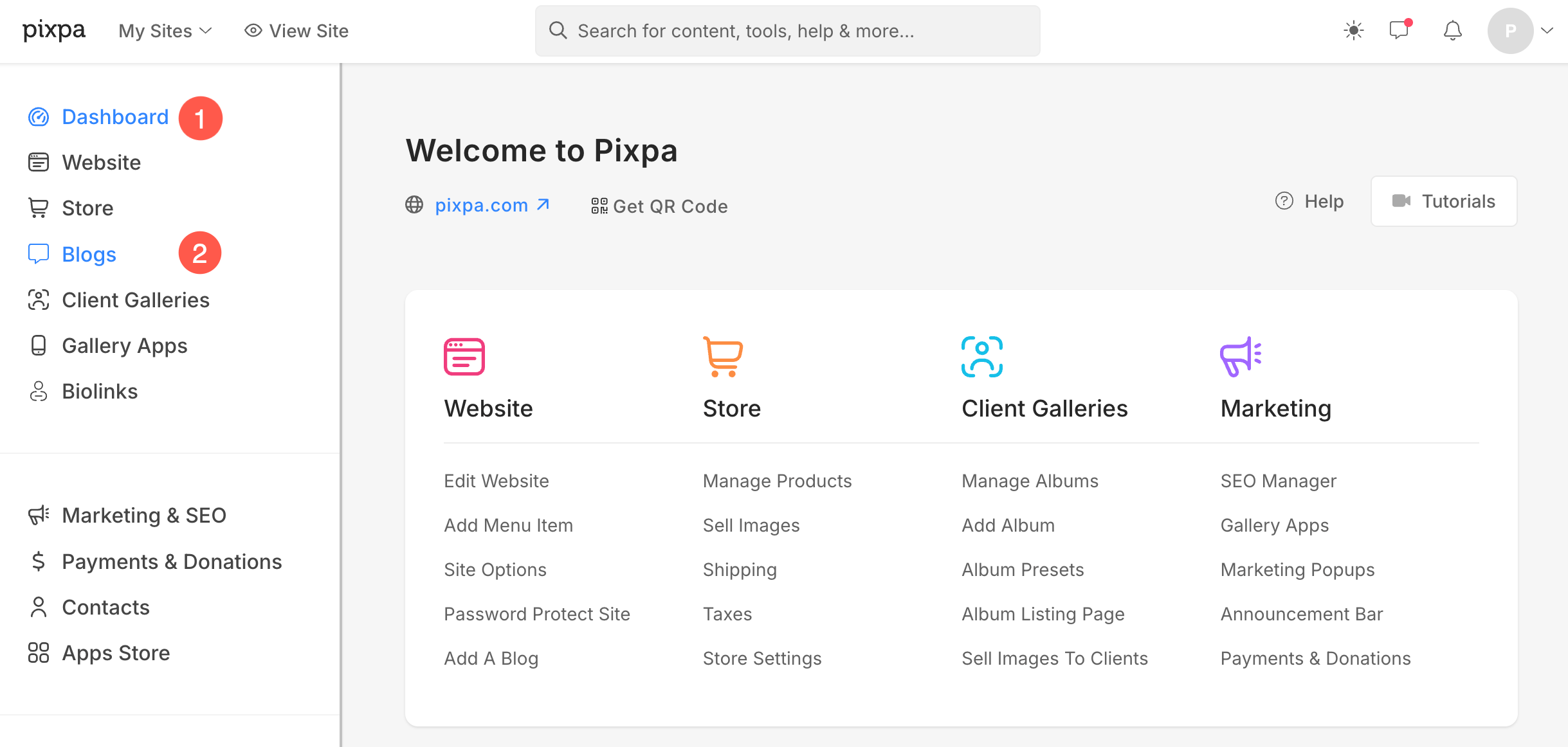
- Under the Blogs section, you will see a list of all the blogs you have created on your website. Click the Manage Blog (3) button next to the blog from which you want to move the blog post.
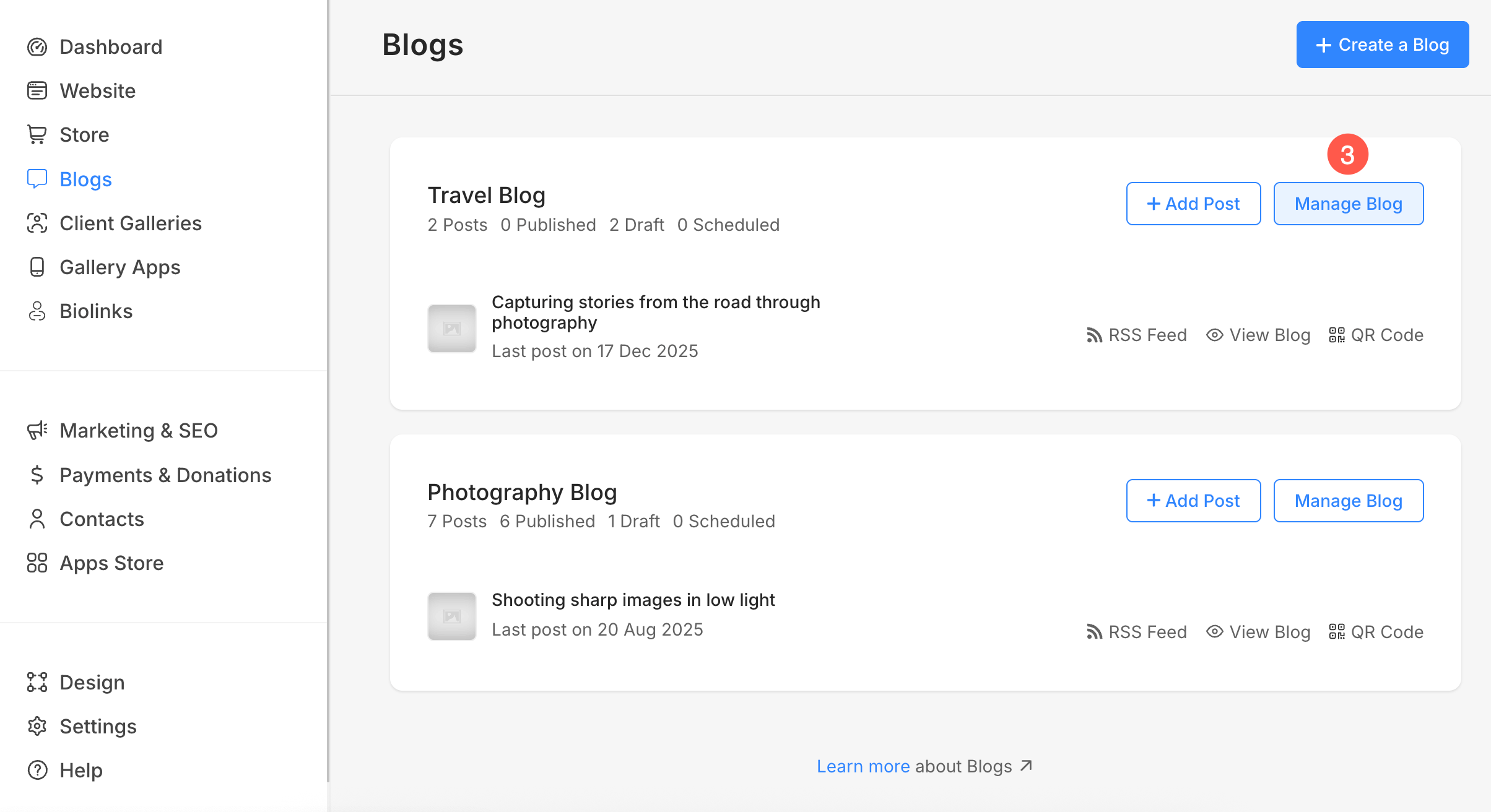
- Select the blog post (4) you want to move by checking the box next to the post.
- To select all blog posts at once, check the box next to 1 Post Selected (5) at the top of the list. This will show up only after you select a blog post.
- Click on the Actions (6) and from the dropdown menu, select Move Blog Post (7) option.
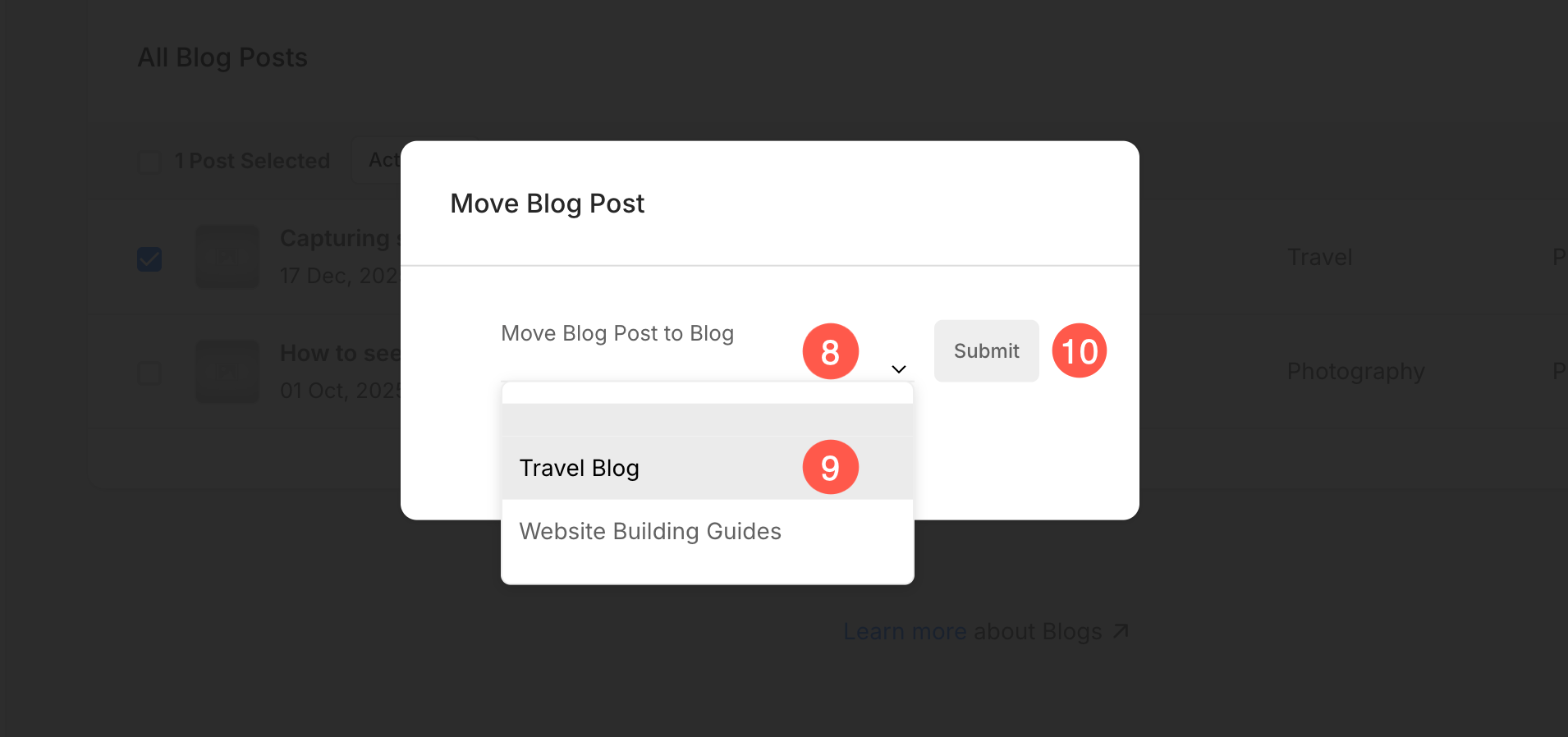
- A popup will appear. Click the Move Blog Post to Blog (8) dropdown.
- Choose the destination blog where you want to move the selected post or posts (9).
- Click Submit (10) to confirm and move the blog post to the selected blog.
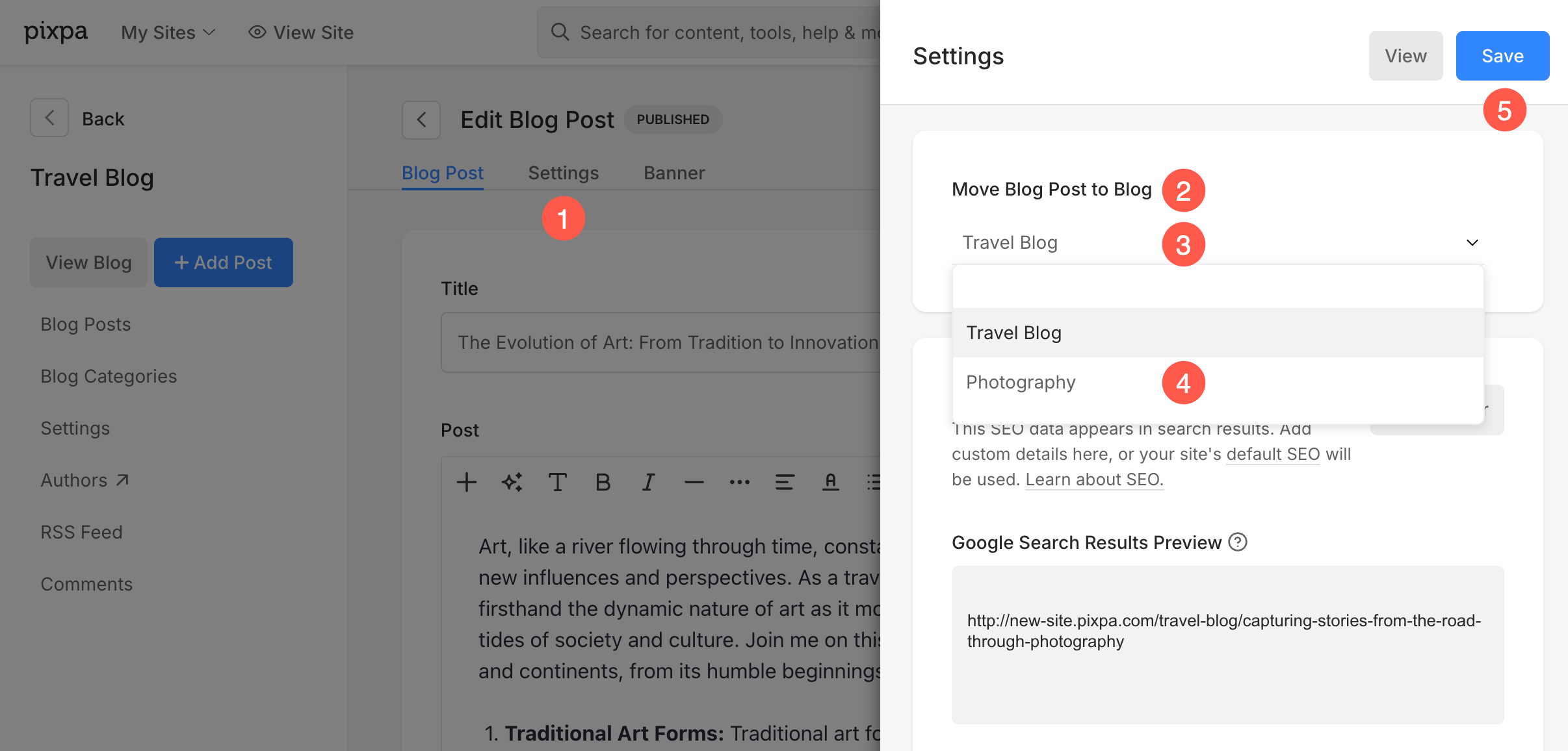
You can also move a blog post directly while editing the post itself.
- Open the blog post that you want to move and click Settings (1) tab.
- Under Move Blog Post to Blog (2) section, click the blog selection dropdown (3).
- Choose the destination blog (4) where you want to move the post.
- Click Save (5) to apply the changes.
What happens after moving a post
- The content of the blog post remains unchanged.
- All post data moves with the post, such as banner, gallery, tags, assigned author, visibility settings, excerpt, formatting, etc.
- The post is removed from the original blog and added to the selected blog.
- The post will follow the layout and settings of the new blog.
- Categories are not carried over. After moving the post, it is assigned to Uncategorized, and you’ll need to reassign it to the appropriate category in the destination blog.