In the constantly changing world of SEO, getting your website content indexed quickly by search engines is increasingly important.
IndexNow is a useful protocol that allows website owners to notify supported search engines whenever new content is published or existing pages are updated, helping those changes get discovered and indexed much faster. IndexNow is offered under the terms of the Attribution-ShareAlike Creative Commons License and has support from Microsoft Bing, Naver, Seznam.cz, Yandex, Yep.
In this article:
- Generate Key File using Bing
- Host the Key File in Pixpa
- Setup Redirects
- Verify Ownership
- Test Verification
Generate Key File using Bing
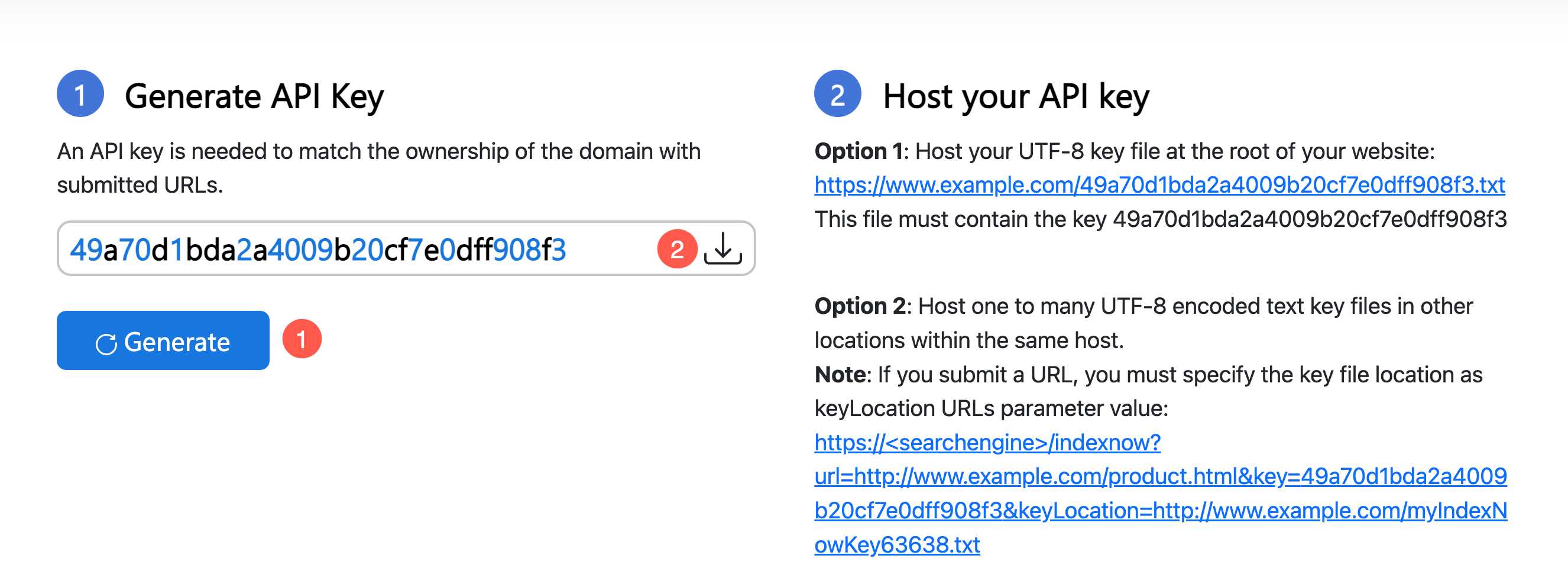
Go to https://www.bing.com/indexnow/getstarted, where you will find a form that allows you to generate an API key.
- Click the Generate button to create your API key.
- Once the key is generated, click the Download icon next to it to download the key file to your computer.
Host the Key File in Pixpa
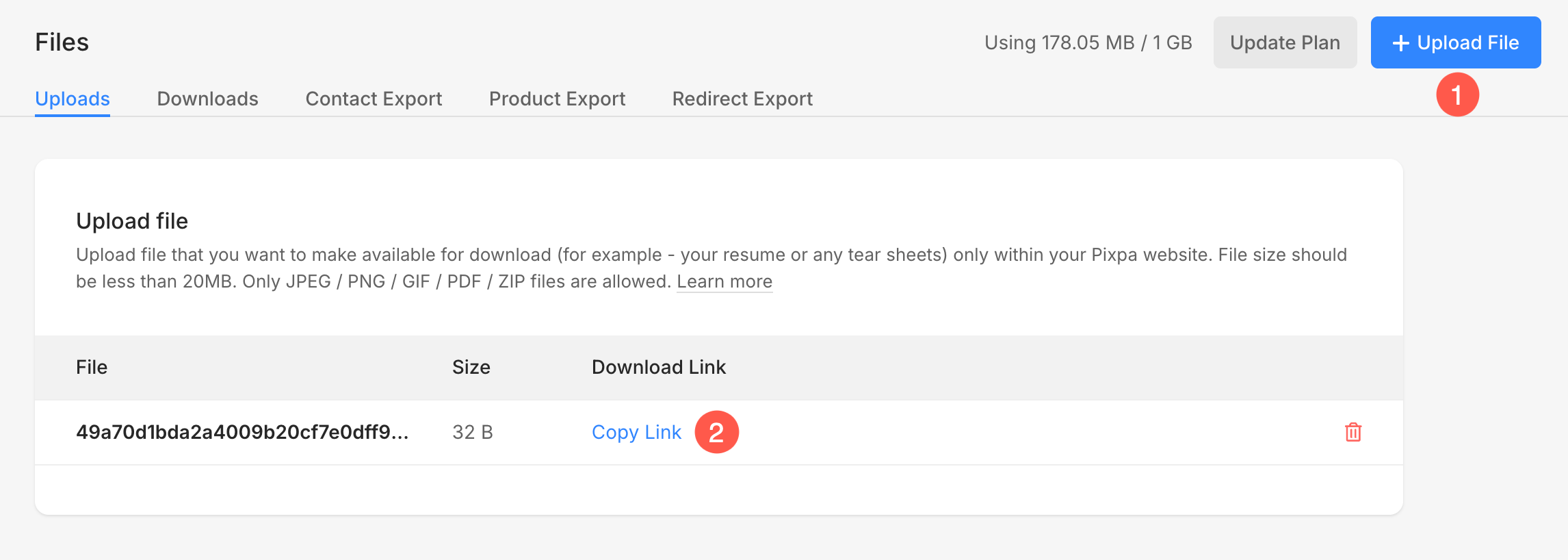
- Log in to your Pixpa dashboard and navigate to the Files section.
- Click the Upload File (1) button to upload the API key file that you downloaded earlier.
- Once the file is uploaded, click Copy Link (2) to copy the public URL of the key file.
Setup Redirects
- Go to your Pixpa Settings and open the URL Redirects section.
- Click Create a Redirect.
- In the Original URL (Relative URL) field, enter the key file name preceded by a forward slash. Example: /your-key.txt.
- In the New URL field, paste the copied link of the uploaded key file from the Files section.
- Click Save to apply the redirect.

Verify Ownership
- Open a new browser tab and enter the following URL format:
https://api.indexnow.org/indexnow?url=https://yourdomain.com&key=your-key
- Replace yourdomain.com with your actual website domain.
- Using your direct domain URL will automatically push and index your website’s homepage.
- You can also replace it with any specific page URL if you want to push that particular page instead.
- Replace your-key with the API key generated earlier.

- Press Enter to submit the request. If everything is set up correctly, the request will notify IndexNow and verify your website ownership.
Test the IndexNow Verification
After submitting the verification URL, you can confirm whether the request was successful by checking the network response in your browser.
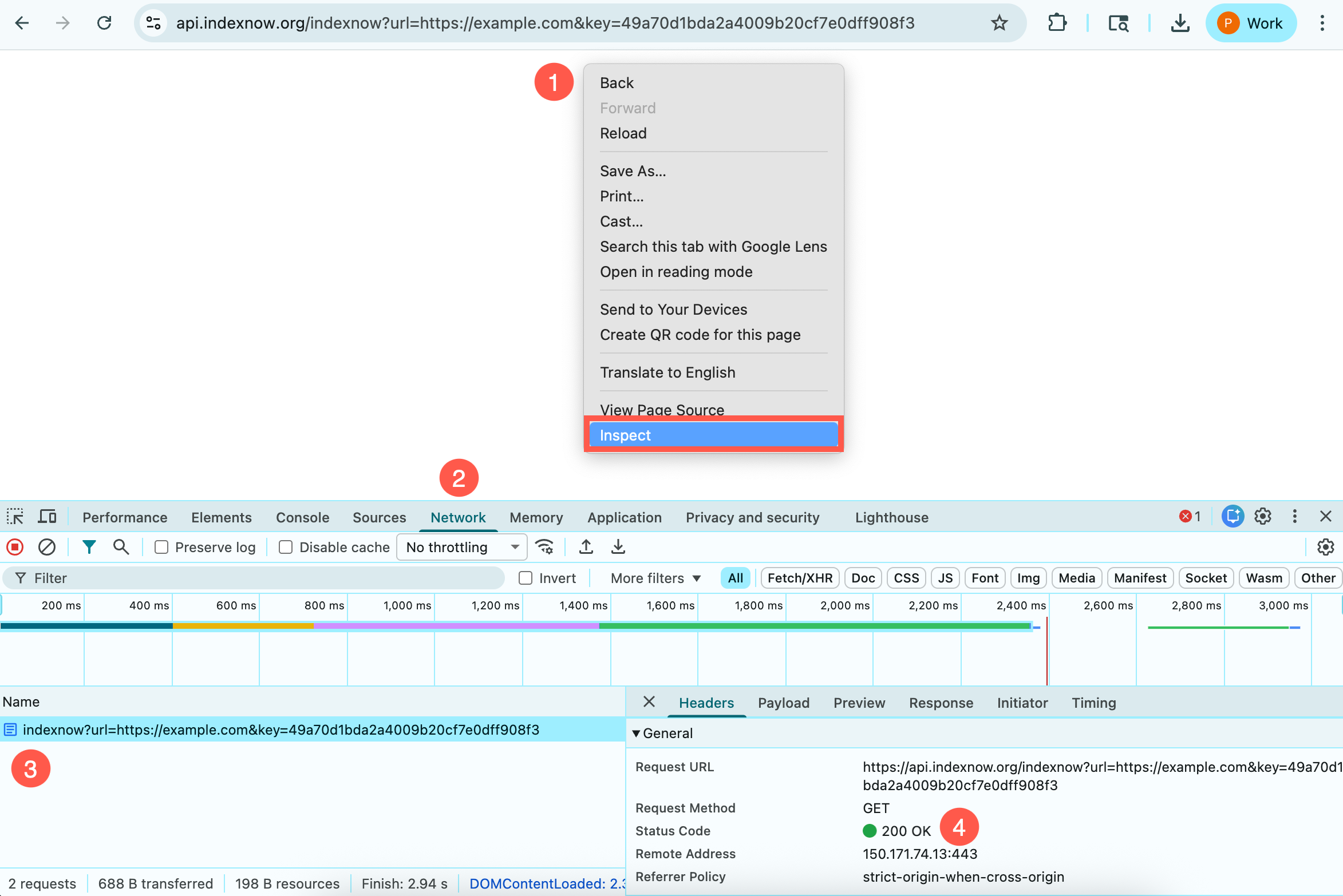
- On the same verification page, right click anywhere on the page and select Inspect.
- In the developer panel that opens, click on the Network tab.
- Look for the request that begins with indexnow?url=… in the list of network requests. Click on this request to view its details.
- In the Headers section, check the Status Code value.
If the setup is correct, the status code should display 200 OK. This indicates that the IndexNow request was successfully received and your domain verification is working properly. If you see any other status code, review the previous steps to ensure the key file is uploaded correctly and the redirect has been configured properly.