
Pixpa’s Gallery Links platform enables you to create personalized mobile gallery links for your clients. Share your work, build your brand, deliver added value and impress your clients.
Also See: Add a mobile gallery link.
After you have created a gallery link, you can share it with your clients by sending an email.
To share the Gallery link, follow these steps:
- Go to the Gallery Links section in Studio.

- Select the particular gallery link that you want to share and click on it.
- After opening the link, you will see the Share tab (2) next to Settings. Click on it.
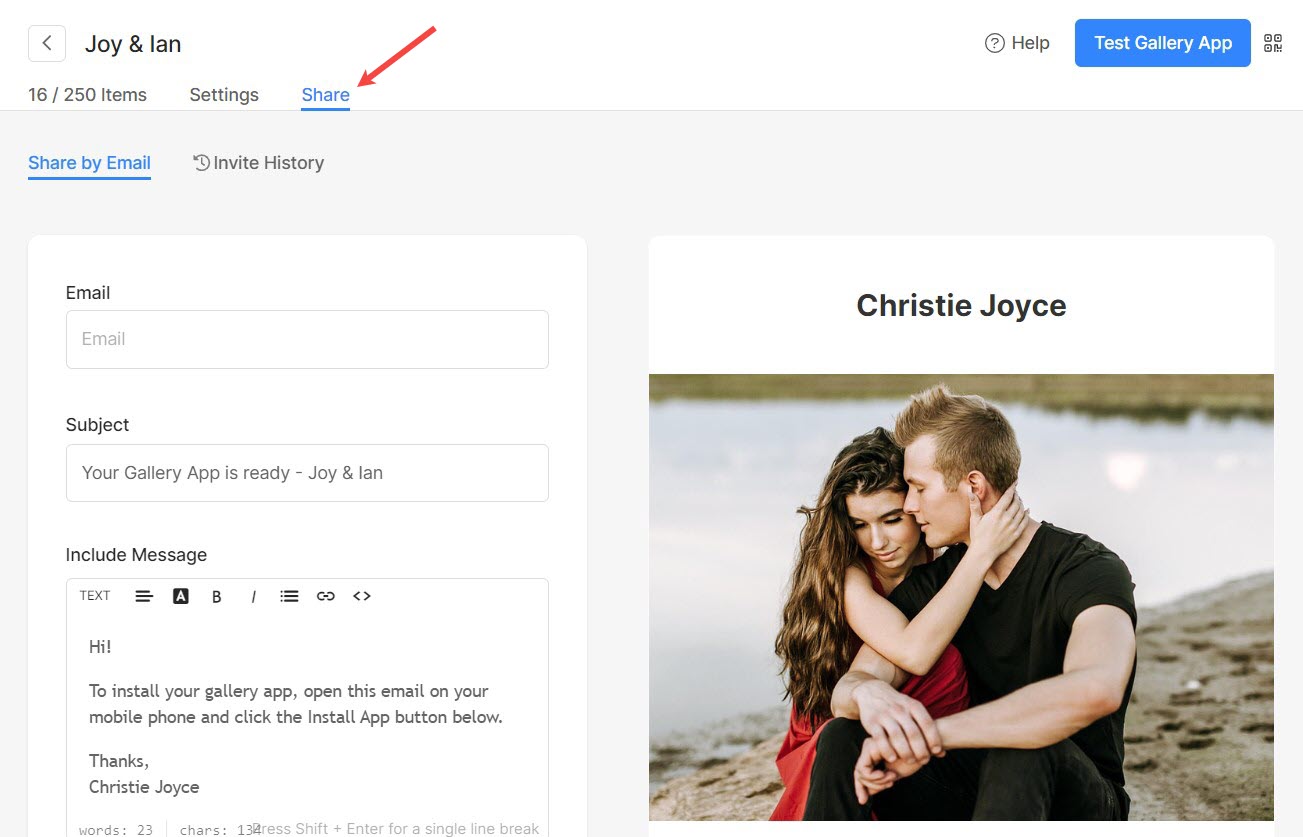
Share by Email
- To share the gallery link by email, click on the Share by Email tab (1).
- On this page, you can write your client’s email ID (2) with the subject (3) and message body (4). You can send the email to one or up to 3 email addresses at a time (separated by commas).
- Then, you need to verify the Google-captcha. You can send a copy to yourself as well (5). Click on the Send Email Invite button (6) to send out the invite email. That’s it.
- You can also review your drafted mail on the right side (7).
- You may also send the same gallery link installation instruction to your registered email ID from the right top by clicking on the Test Gallery Link button (8) to check, install and review before sending it directly to someone.
